Courts
Courts are the bookable resources of your club: tennis, padel and pickleball courts, or any other playing area. Members book them from a live calendar on your website and in the app.
Courts are managed in the member app, not in Club Admin. Open the App tab at the top of the admin, then the menu, then Court management. You can also go straight to /app/admin/courts on your club's address.
Court management
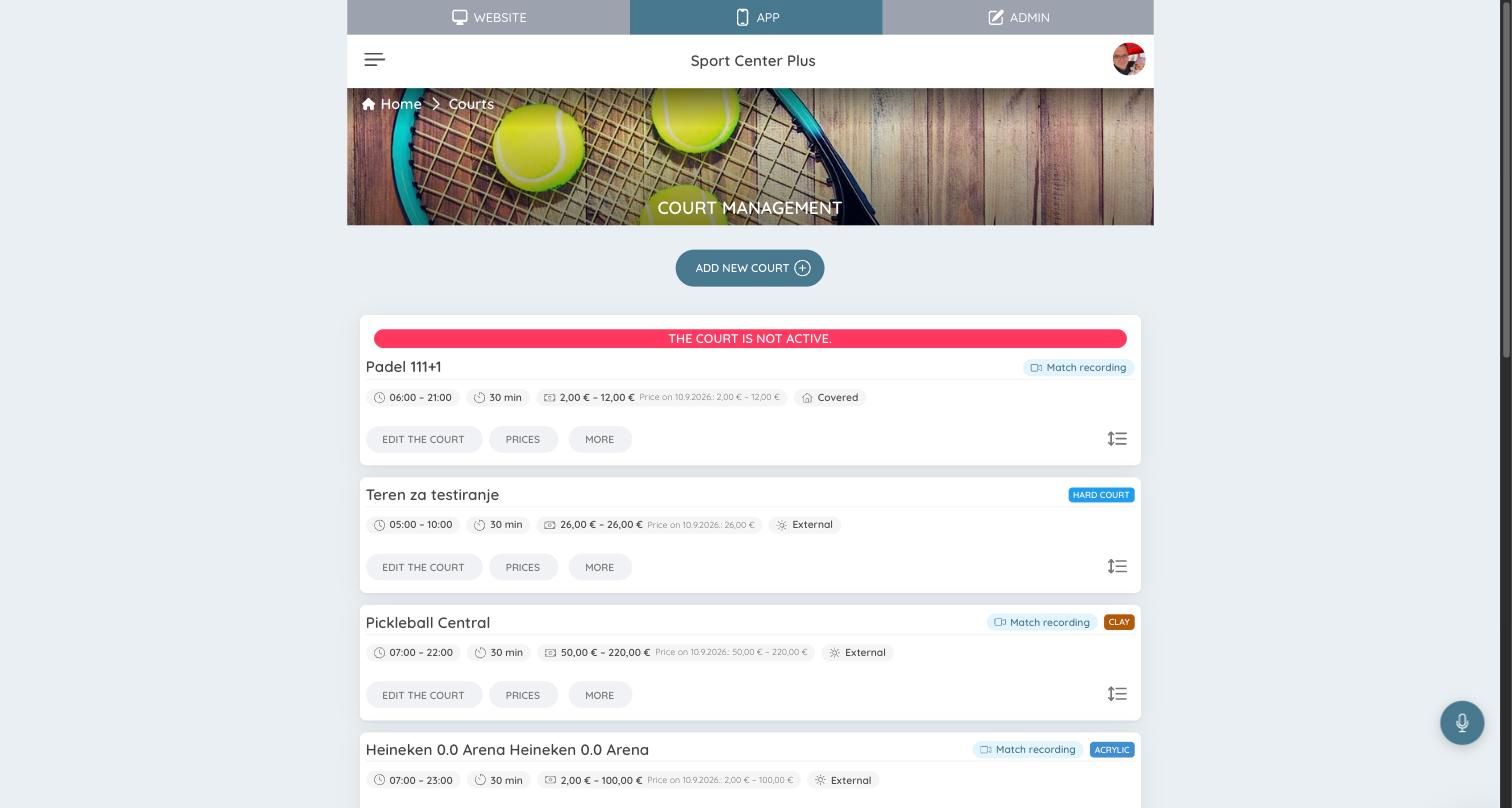
Each card shows one court:
- Its opening hours and booking length.
- Its price range, and the prices that apply on a sample date.
- Whether it is indoor (Covered) or outdoor (External), and its surface.
- Badges for extras such as Match recording.
A red The court is not active banner means members can't book it. Drag the handle on the right of a card to change the order courts appear in.
Each card has three buttons:
- Edit the court — the court's details and booking options.
- Prices — its opening hours and prices.
- More — further options.
To add a court, choose Add new court.
Court details
Edit the court opens the court's settings. Press the save button at the bottom of the page when you're done.
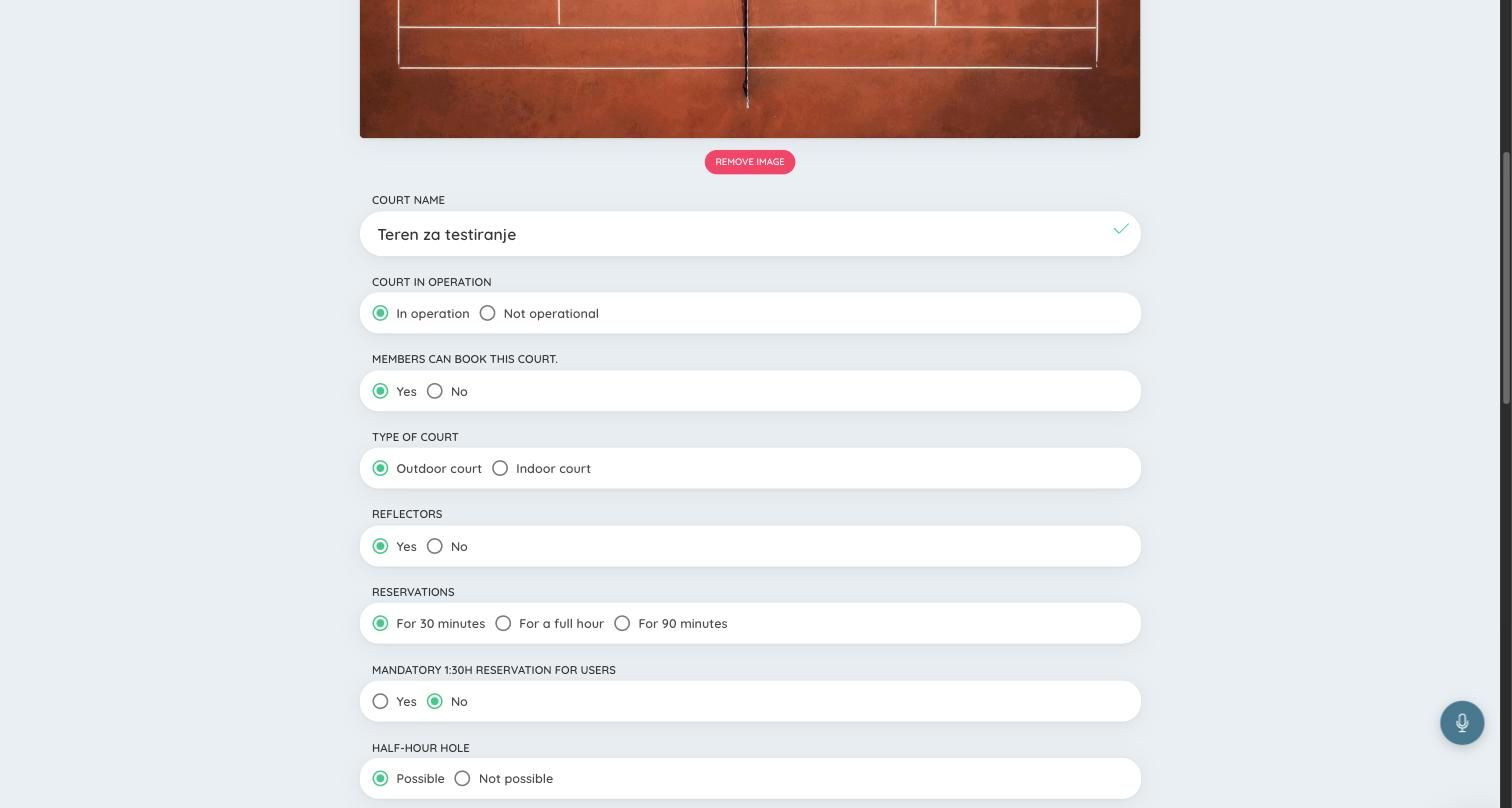
- Court name and a photo.
- Court in operation — switch to Not operational to close a court, for example during resurfacing. It stays in the list but can't be booked.
- Members can book this court — choose No for a court only staff can book, such as one kept for the school.
- Type of court — outdoor or indoor. Reflectors — whether the court has floodlights.
- Reservations — the booking length: 30 minutes, a full hour, or 90 minutes.
- Mandatory 1:30h reservation for users — members can only book 90-minute slots.
- Half-hour hole — whether a booking may leave a 30-minute gap that nobody else can use. Choose Not possible to protect your schedule from gaps. You can then:
- lift the protection a set number of hours before the slot starts, so short gaps can still be filled at the last minute;
- allow a 30-minute gap just before closing time.
- Half-hour reservation for members — whether members may book a single 30-minute slot.
- Confirmation — whether bookings on this court must be confirmed by the club.
- Show the court on the SportyPlus page — whether the court is listed on sporty.plus, as well as on your own site.
- Type of court (the sport) and Type of substrate (the surface) — used for filters and the badges on the booking page.
Delete court, at the bottom of the page, removes the court.
Prices
Prices is where you set when a court is open and what it costs. A court can only be booked in the hours you have priced, so a slot with no price can't be booked at all.
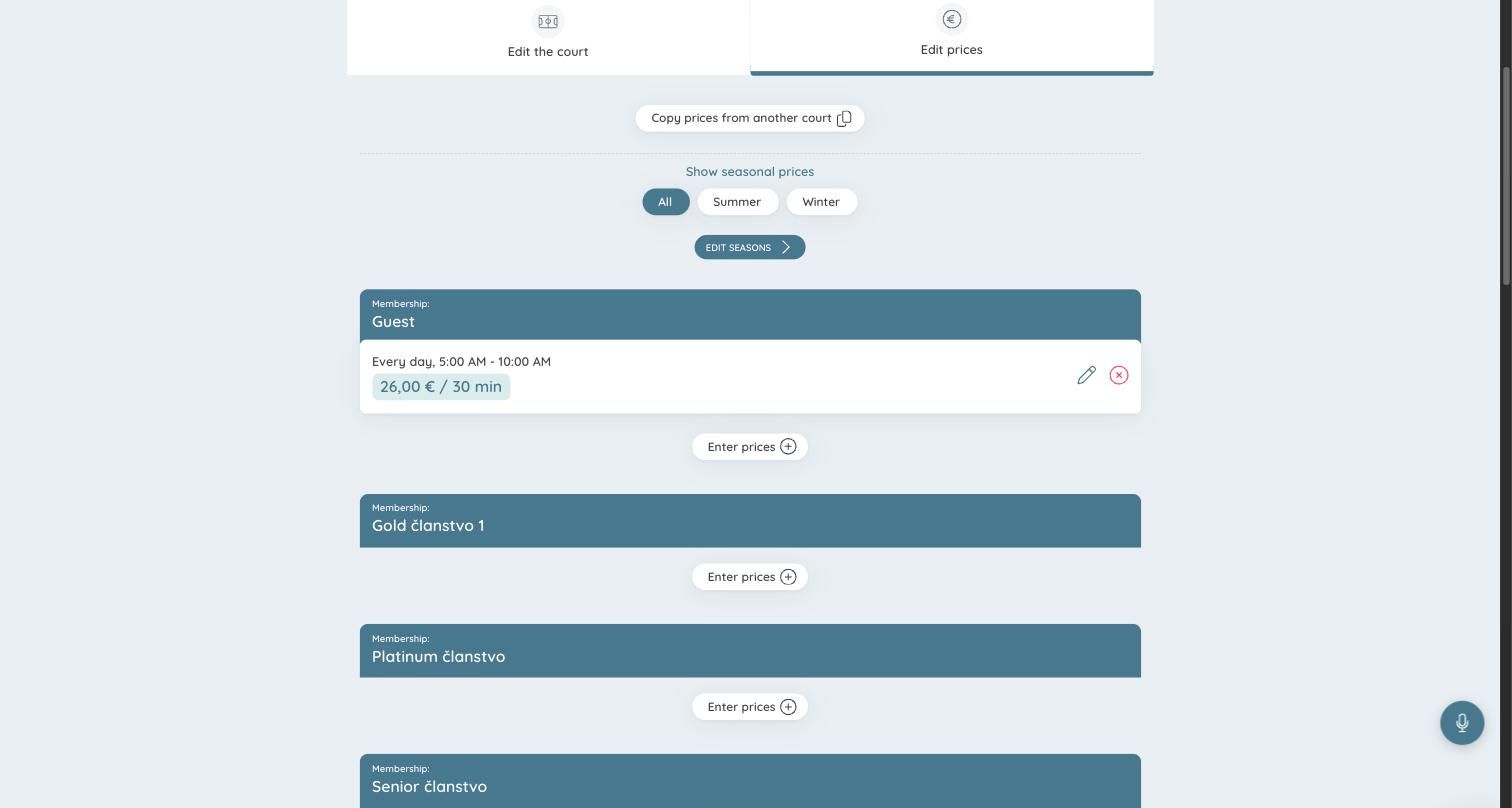
Prices are grouped by membership. For each membership:
- Choose Enter prices.
- Pick the days of the week, the start and end time, and the price per booking slot.
- Add as many entries as you need, for example a cheaper morning rate and a dearer evening rate.
Always enter prices for your basic membership: they are what everyone without another membership pays.
To save time:
- Copy prices from another court copies another court's opening hours and prices to this court.
- Seasonal prices — choose Edit seasons to define seasons such as Summer and Winter, each with its own prices. Show seasonal prices filters the list by season.
The booking calendar
Every court is listed on your website's /courts page, with a day-by-day calendar of free and booked slots. Visitors pick a date, see which slots are free on each court, and book.
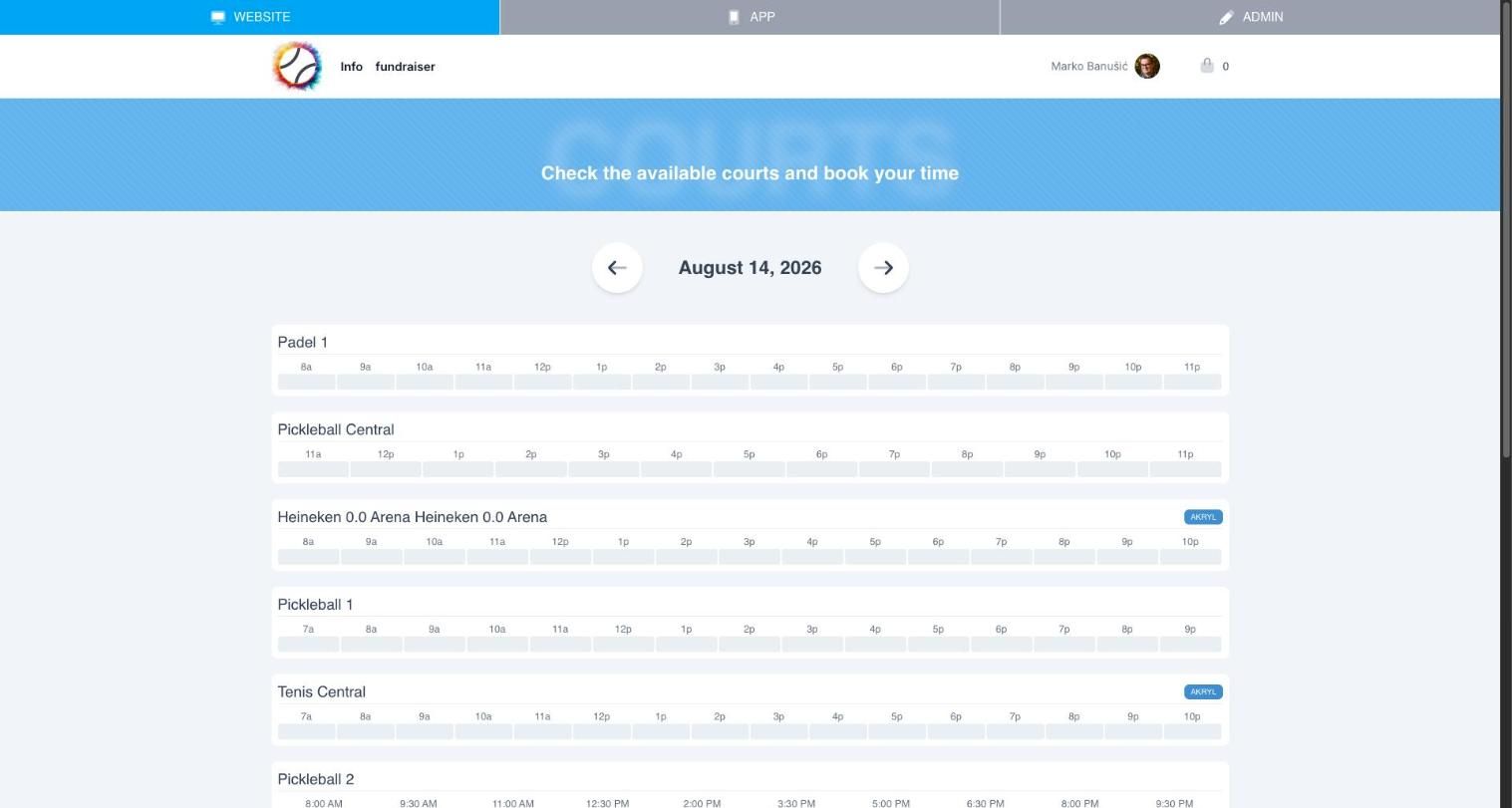
To show a preview of the calendar on your homepage, use the Courts module under Website → Courts.
Club-wide booking rules, such as whether non-members may book, are in Booking rules.
Access control and lights
You can connect door locks and court lights, so that a court opens and its lights come on when a reservation starts. See Integrations for the supported hardware.