Club settings
Club-wide configuration lives under Club Admin → Club. This page covers the club's identity and company details. Booking rules, sign-up and staff each have their own page:
- Booking rules and price list
- Sign-up and legal pages
- Administrators and roles
- Payment settings are part of Payments
Every settings page has one Save button at the bottom. Nothing changes until you press it.
General
Club Admin → General is your club's public identity.
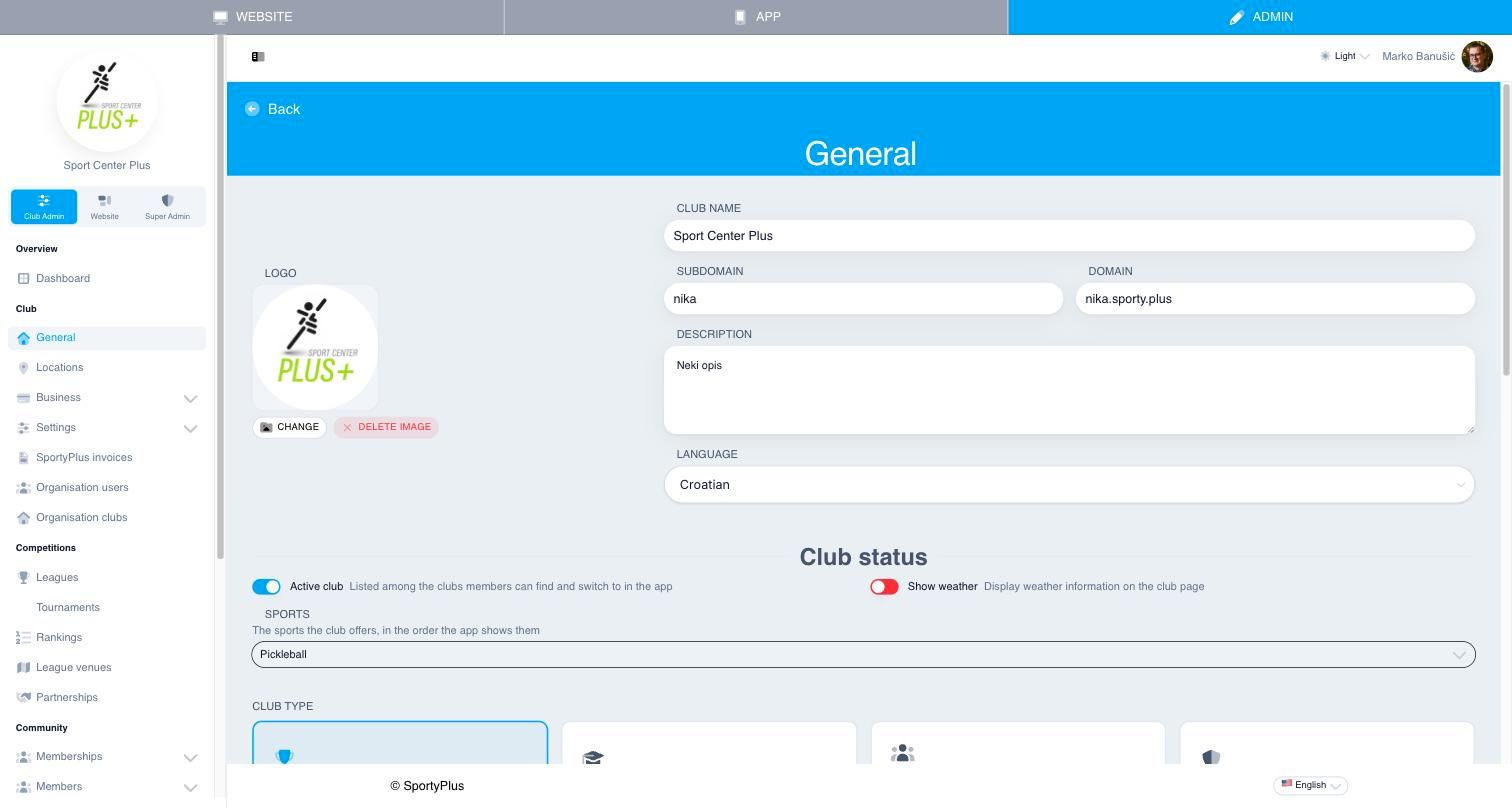
- Logo, Club name and Description appear on your website and in the member app.
- Subdomain is your address on SportyPlus, such as
yourclubforyourclub.sporty.plus. - Domain lets you use your own domain, such as
booking.yourclub.com. Once you save a domain, a status panel shows the DNS records to add at your domain provider, then tracks progress: waiting for DNS, issuing a certificate, then Live. Use Check now after you have changed DNS. If your provider supports automatic setup, the panel offers to add the records for you. - Language is your club's default language.
Under Club status:
- Active club lists your club among the clubs members can find and switch to in the app.
- Show weather shows a weather forecast on the club page.
- Sports are the sports you offer, in the order the app shows them.
- Primary sport appears when you offer more than one sport. It is listed first, opened first in the app, and preselected for new competitions. It is chosen when your club is created; change it here.
- Club type decides which parts of SportyPlus you use:
- Club — courts, booking, members and competitions.
- Academy — a school with groups, terms and tournaments. It adds the Academy Manager.
- League — members and leagues, but no courts of your own. Switching to League turns off court booking, the price list and cameras. Add the places your league plays at under Locations.
Further down are your Contact details, Socials (full links to your Facebook, Instagram and other pages), and your Address. Fill in the Postal code: it is needed to take card payments in person and is printed on payment slips.
Locations
A location is one physical site of your club, with its own address, opening hours and photos. Most clubs need none: a club with no locations is shown at its own address everywhere. Add locations when you run more than one site, so members know where the court they booked is.
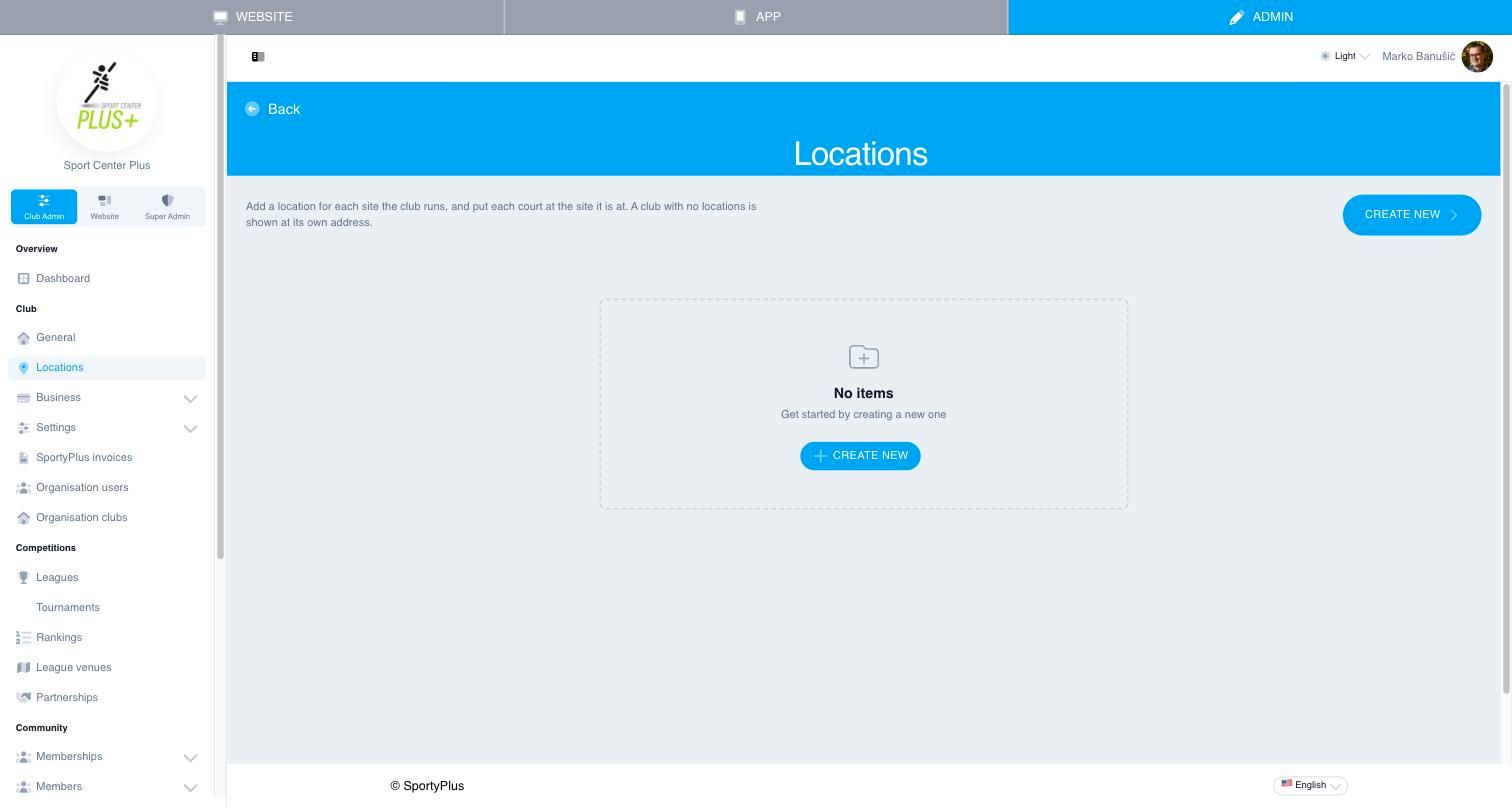
To add a site, open Club Admin → Locations and choose Create new:
- Enter a Name. Leave Shown on the club website on unless the site is private.
- Fill in the address. For an accurate map pin, right-click the spot in Google Maps, copy the coordinates it shows, and paste them into Latitude and Longitude.
- Set Opening hours for each day. Switch a day off to show it as closed.
- Add a cover photo and any other photos.
- Under Courts at this location, pick the courts at this site. A court can be at only one location, so picking it here moves it from any other.
- Save.
When a club has two or more locations, the list warns you about any active court that isn't at a location. Members booking it wouldn't know where to go.
Company info
Club Admin → Business → Company info holds the legal and billing details printed on invoices and used by payment providers.
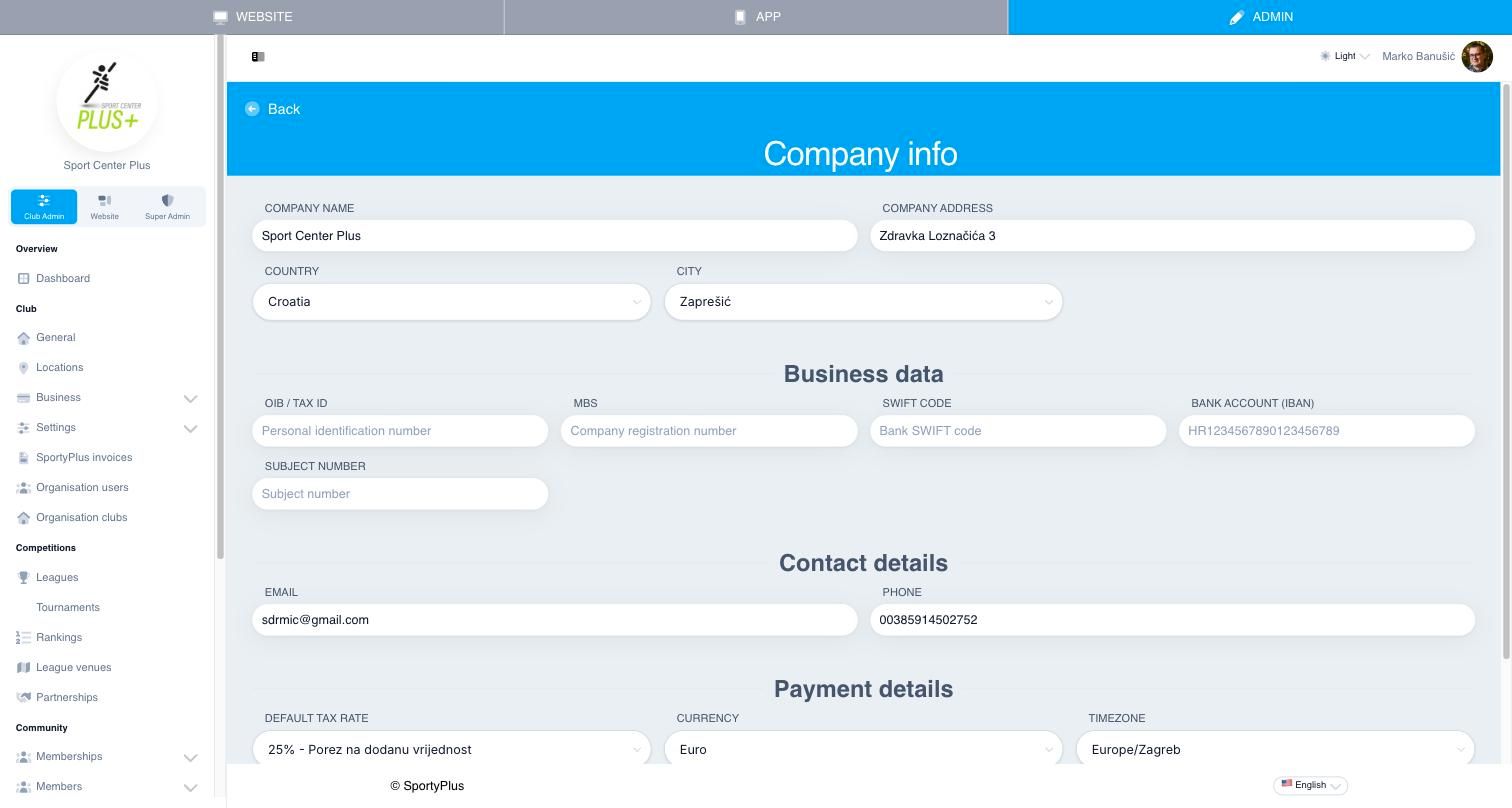
- Company name, Company address, Country and City.
- Business data — your tax ID (OIB in Croatia), company registration number (MBS), and bank details (SWIFT and IBAN).
- Contact details — the email and phone shown on invoices.
- Payment details — your Default tax rate, Currency and Timezone. These are also shown on Settings → Payments.
Display
Settings → Display controls what members see of each other and of competitions:
- Privacy — whether members can see other members' personal information, and whether ages are shown.
- Rankings & results — show the ranking list, the club's own ratings (levels, ELO points and ranks), the results button and the competitions section. DUPR ratings are switched on separately, in the DUPR integration.
- Features — match watchers, and the club switcher in the app's navigation.
- Date format — how dates, times and amounts are written across the app. Leave it empty to follow each member's language.
Invoices
Settings → Invoices sets up the invoices SportyPlus issues for orders. Switch on Enable invoices to see the options:
- Invoice template — the layout and language of the invoice.
- Invoice numbering — a prefix and suffix around the number, and whether numbering restarts each new year.
- Company info and Notes — text printed on the invoice. Leave Company info empty to use your company details.
- Fiscalization info — for Croatian clubs, the business unit, device, operator and certificate used to fiscalise invoices.
- Reservation title on invoice — the line name for court bookings. The default is "Reservation".
API clients
Settings → API clients is where other software connects to your club. It has two lists.
Your applications are ones built for this club. New application gives one a client id and a secret. The secret is shown once; copy it then, or issue a new one with New secret. Remove switches the application off everywhere, immediately.
Applications with access to this club are ones built by someone else, such as a booking marketplace or a venue manager, that you have allowed to act for the club. Each one lists what it may do. Withdraw takes that away immediately; you can grant it again later.
Booking webhooks
An application that keeps its own booking diary in step with yours is told about bookings made here through a booking webhook: an address on its side that Sporty sends every change to. The application sets the address itself (see Syncing bookings). Where it has, you see a box under the application with the following:
- the address;
- Delivering when it is receiving changes, Failing when it is not, or Nothing sent yet;
- when it last received anything;
- while it is failing, since when and why.
A failing webhook loses nothing. Changes are resent every minute until the application accepts them, but its copy of your diary is out of date meanwhile. Tell the application's supplier.
Stop turns the webhook off and leaves the application's access in place. Use it for an address you do not recognise, or one that has been failing for days. The application can set a new webhook; to keep it off, Withdraw its access.