Payments
SportyPlus takes payments for court bookings, memberships, shop orders, event tickets and academy fees through one payment provider, which you connect once for the whole club.
Setting up payments takes three steps:
- Fill in your company details.
- Connect a provider under Business → Payment gateway.
- Switch on online payment under Settings → Payments.
Choosing a payment gateway
Club Admin → Business → Payment gateway
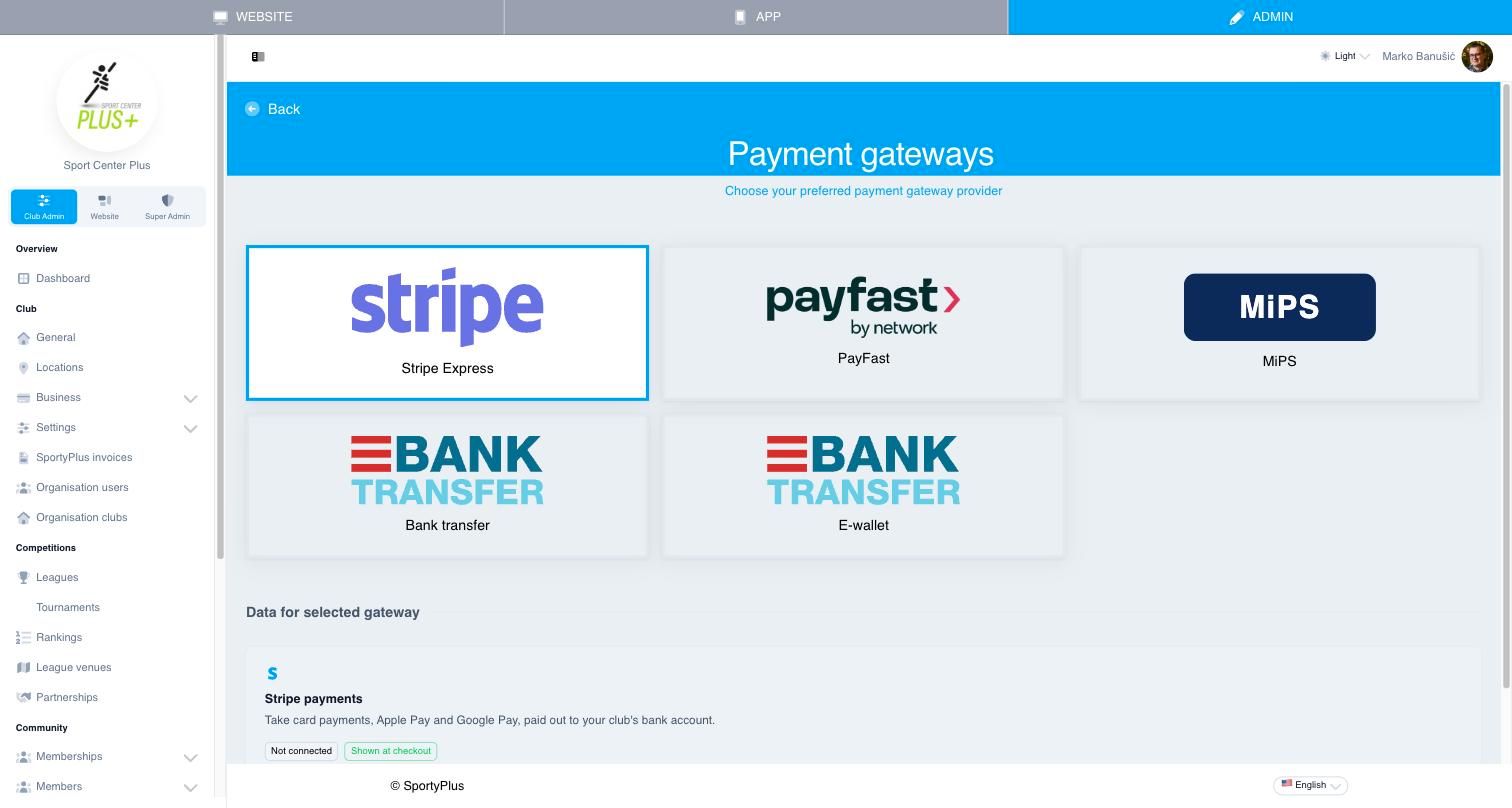
Click a provider to select it. Its settings appear under Data for selected gateway.
Stripe
Stripe is the right choice for most clubs. Members pay by card, Apple Pay or Google Pay, and the money is paid out automatically to your club's bank account.
- Select Stripe Express and choose Set up Stripe.
- Stripe asks for your club's legal details, a representative, and a bank account in the club's name.
- At the end, choose Turn on card payments.
If you stop part-way, Continue setup takes you back to where you left off. Once you're connected, Manage Stripe shows:
- Your balance and payouts.
- Anything Stripe still needs from you.
- The Checkout settings:
- Accept card payments at checkout.
- Payment fee — a percentage added to prices at the final step of payment.
- Test mode — payments go to a test account and no real money moves. Use it to try a booking before you go live.
Other providers
- PayFast — enter the merchant ID, merchant key and passphrase PayFast gave you. Switch on Sandbox to test.
- MiPS — enter the credentials MiPS issued you. After the first save, the page shows a notification address: give it to MiPS, or payments are never confirmed.
- Bank transfer — members pay by bank transfer. Enter the IBAN and account holder shown on the payment slip, and the reference model and prefix used to match payments.
- E-wallet — members pay from credit they have topped up at your club.
Each provider has an Active switch and a Save button.
Payment settings
Club Admin → Settings → Payments decides which ways of paying members are offered.
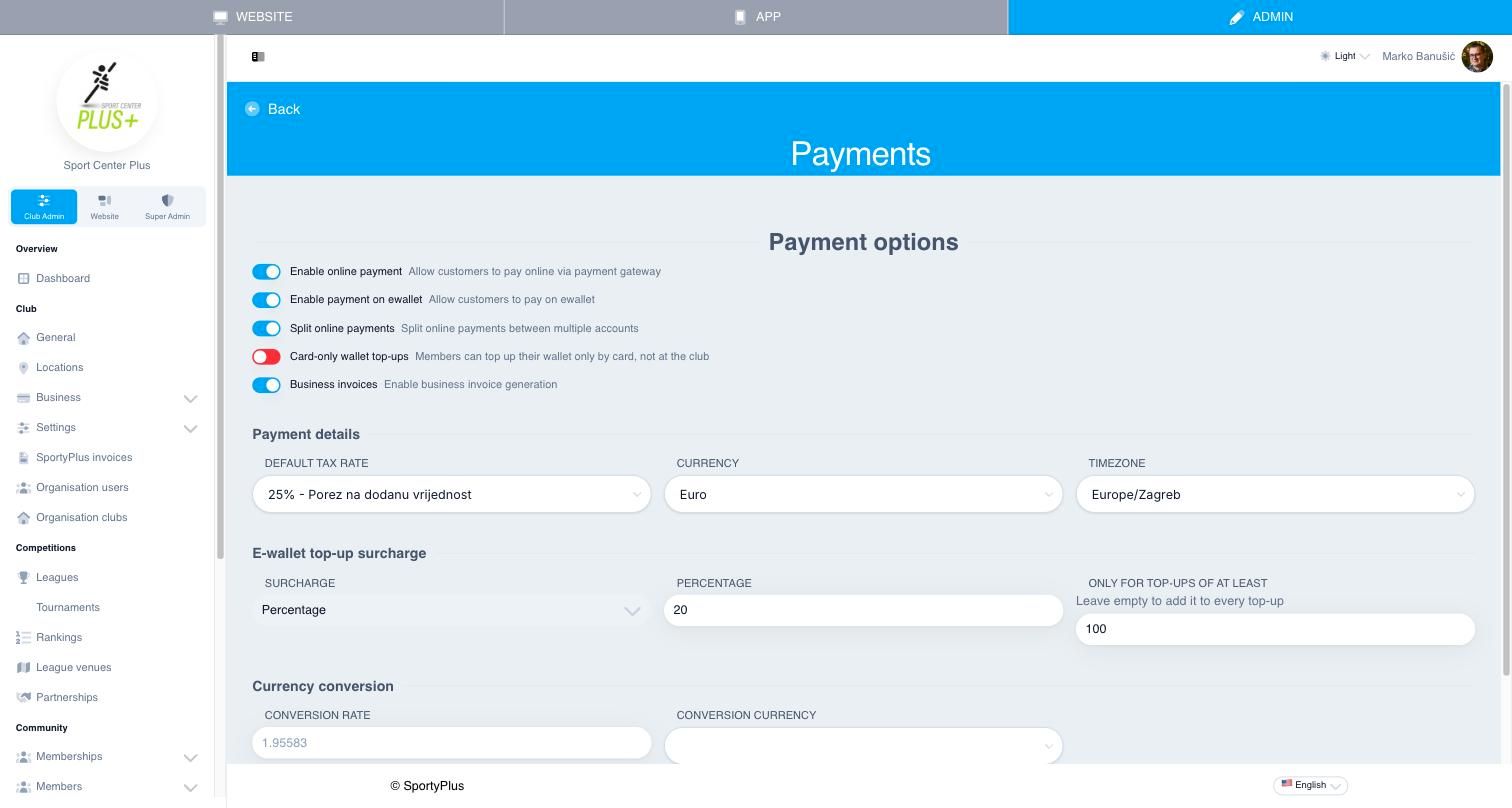
Payment options
- Enable online payment — members can pay online through your payment gateway.
- Enable payment on ewallet — members can pay from their e-wallet balance.
- Split online payments — splits online payments between several accounts.
- Card-only wallet top-ups — members can top up their wallet only by card, not with cash at the club.
- Business invoices — enables business invoice generation.
Payment details
Your Default tax rate, Currency and Timezone. They are the same fields as on Company info.
E-wallet top-up surcharge
You can charge a surcharge when members top up their wallet, either a Percentage or a Fixed amount. To charge it only on larger top-ups, enter an amount under Only for top-ups of at least. Leave it empty to charge it on every top-up.
Orders
Club Admin → Commercial → Orders lists every order placed at your club: shop purchases, memberships, event tickets and academy fees.
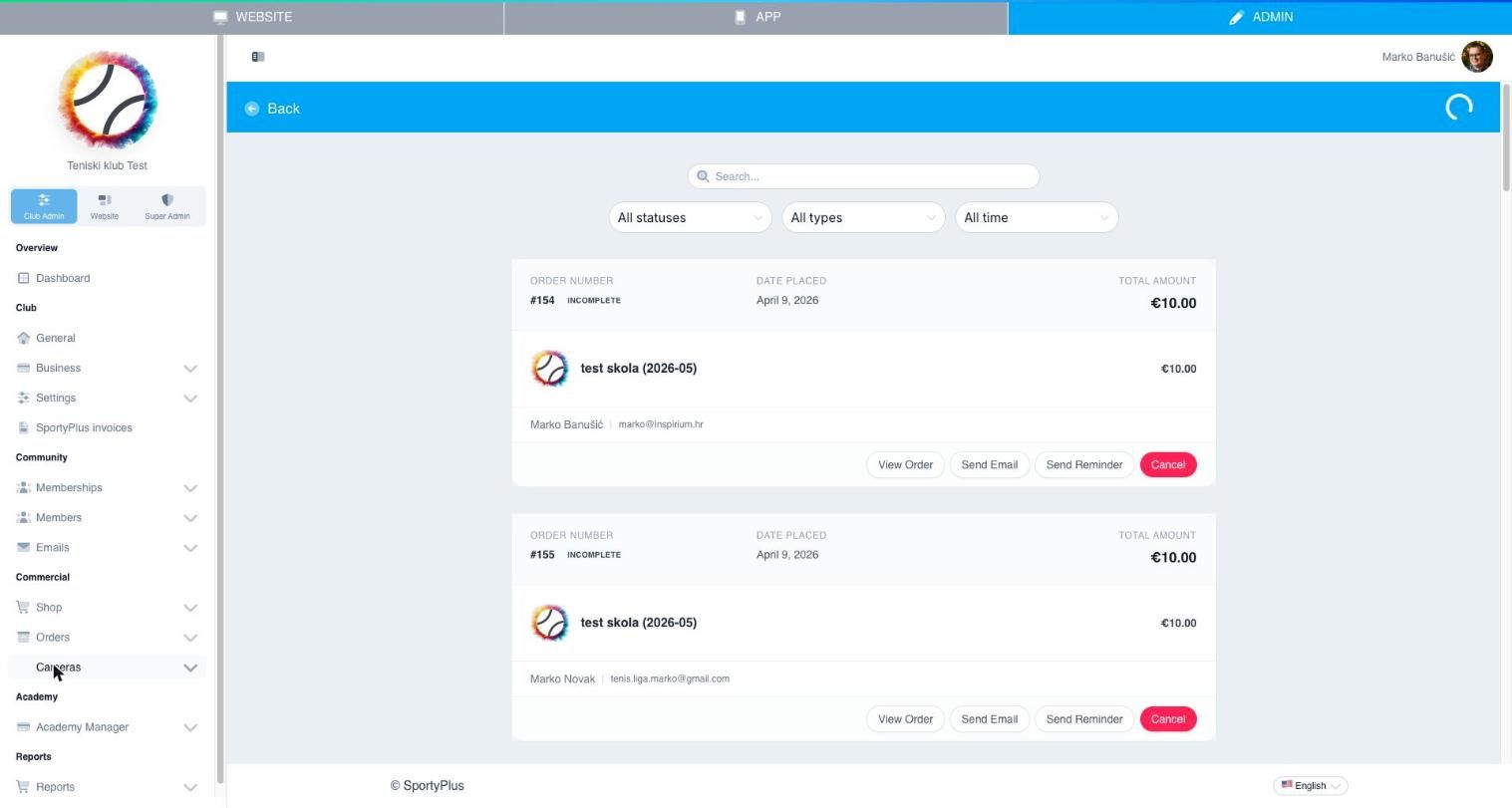
From an order you can see its details, email a copy, send a payment reminder, or cancel it. The same menu has:
- Invoices — invoices issued for paid orders. Set them up under Settings → Invoices.
- Refunds — refund a paid order.
- New order — record an order by hand, such as a payment made at the desk.
For payment totals and card transactions, see Reports.