Memberships
A membership plan decides how a member uses your club: how far ahead they can book, how late they can cancel, which courts they can book, and how many free hours they get. Court prices are also set per plan (see Court prices).
Manage plans under Club Admin → Community → Memberships → Memberships.
The plan list
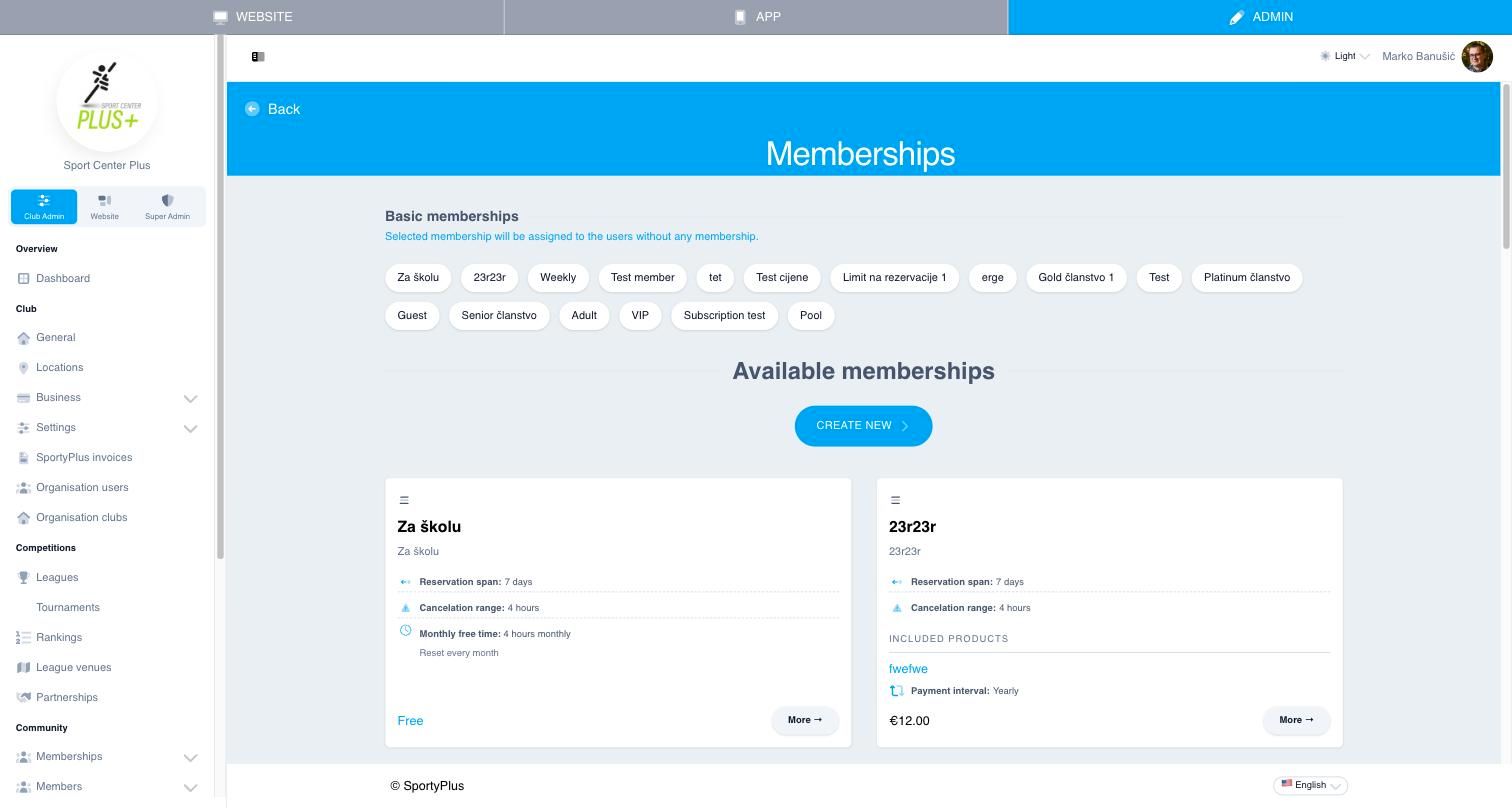
Each card shows a plan's main rules and its price, or Free. Drag a card by its handle (☰) to change the order plans are shown to members, then save the order.
Basic membership
The row of names at the top picks your basic membership: the plan everyone without another membership gets. Every new account in your club starts on it. Most clubs name it "Guest" or "Non-member" and leave it free.
Click a name to make that plan the basic one. A club has exactly one basic membership.
Creating a plan
Choose Create new.
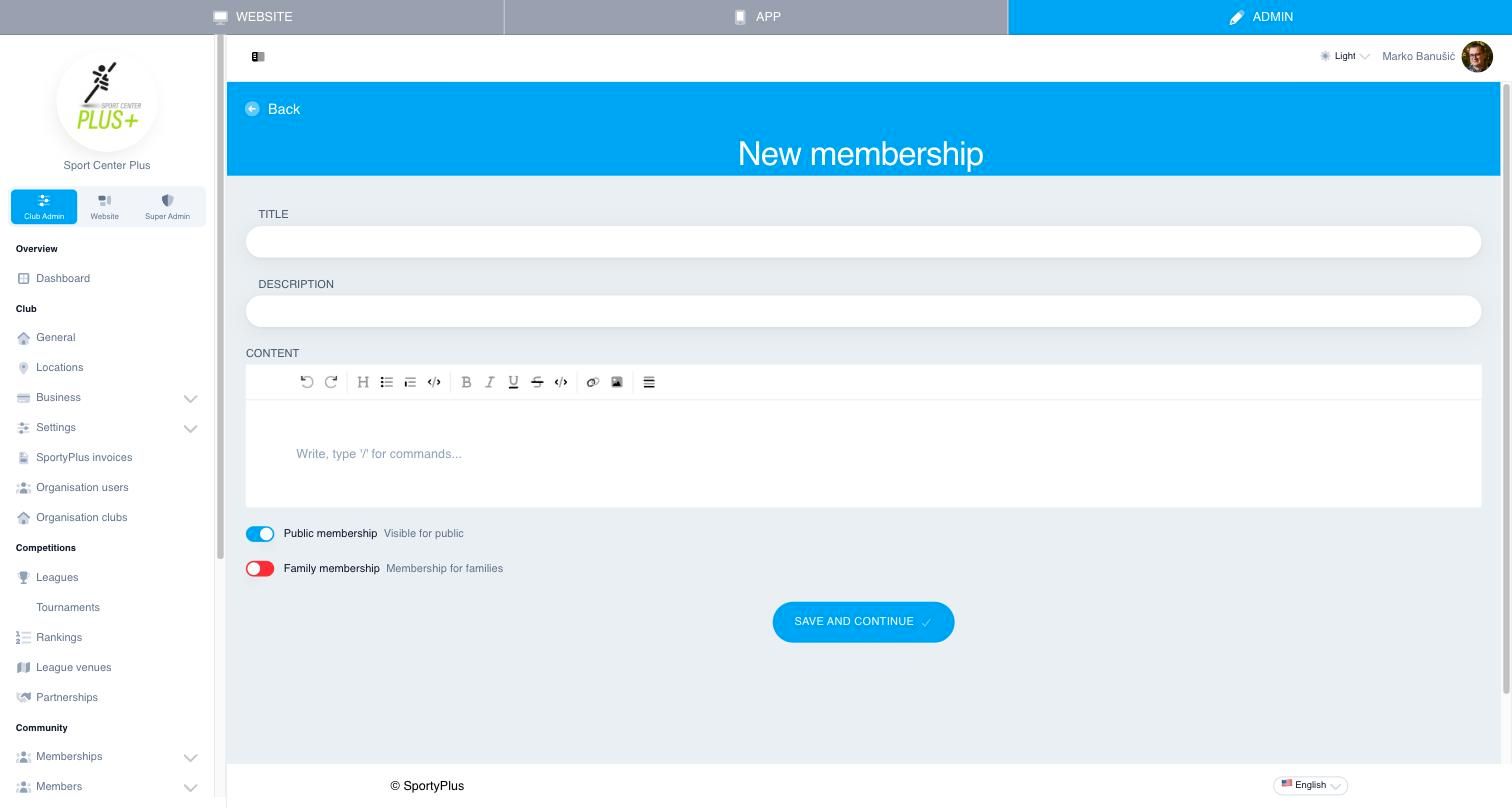
- Enter a Title, a short Description, and, under Content, the full description members read before they buy.
- Leave Public membership on to show the plan to everyone. Switch it off for a plan you only give out yourself, such as one for staff or coaches.
- Switch on Family membership for a plan that covers a whole family, and set the Max number of family members. You can only choose this when you create the plan.
- Choose Save and continue.
The plan's edit page opens, where you set its price and booking rules.
Booking rules
On the edit page, scroll to Booking rules. Each card is one rule and shows its current setting. Click a card to change it, and click it again to close it.
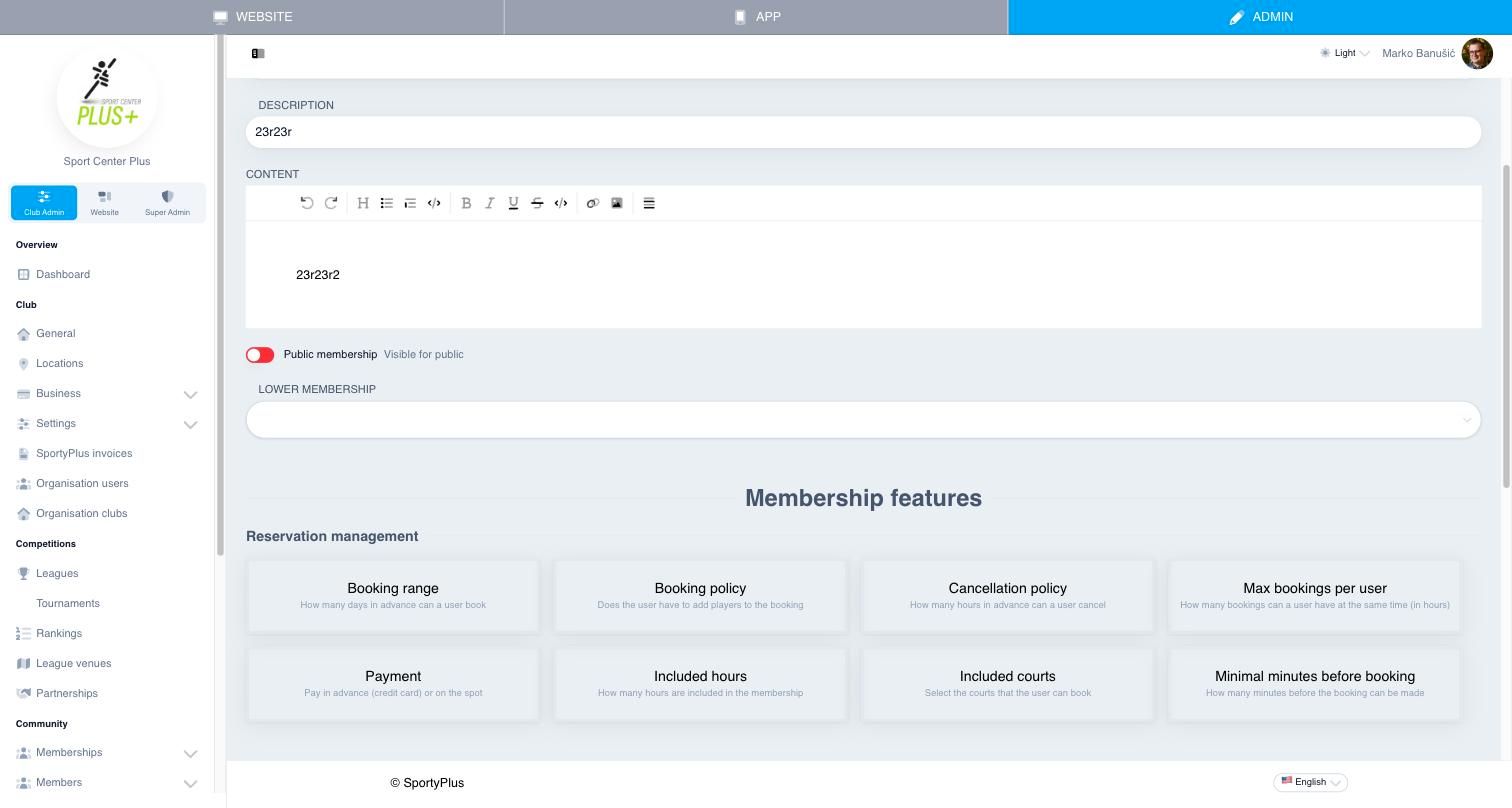
- Booking range — how many days ahead a member can book, from none (0) up to 360 days, or a number of your choice.
- Booking policy — whether the member must add the other players when they book.
- Cancellation policy — how many hours before the start a member can still cancel. 0 means members can't cancel. −1 lets them cancel up to an hour after the booking started, which is useful if rain stops play.
- Max bookings per user — how many bookings, in hours, a member can hold at once. Choose No limit to allow any number.
- Payment — whether the member must pay by card when they book, or may pay at the club.
- Included hours — free court time each month, such as four hours a month. Choose whether unused time is lost at the end of the month (Reset every month) or carried over. You can limit the free hours to selected courts.
- Included courts — the courts this plan may book. If you limit it to some courts, Show excluded courts shows the others on the booking page without letting members book them.
- Minimal minutes before booking — how close to the start time a booking can still be made, such as 15 or 30 minutes.
Choose Save at the bottom of the page.
Selling a plan
A plan is sold through a sellable product attached to it, and the product's price is the membership fee. Under Pricing, above the booking rules, choose Create sellable item, or Add new if the plan already has one:
- Name, Description and Price.
- Available quantity — how many can be sold.
- Type:
- Single purchase — the member pays once.
- Subscription — the member is charged again every interval. Set the Subscription interval (day, week, month or year) and how many intervals there are between charges.
For a subscription you can also:
- Choose when it starts: immediately, at the beginning of this period, or at the beginning of the next. If it doesn't start immediately, you can prorate the first charge.
- Add a Joining fee, by picking an existing shop product.
- Take a Security deposit.
Choose Save product. A plan can have several products, for example a monthly and a yearly price.
Members can then buy the plan from your website or the app. Online payment needs a connected payment gateway.
A plan can also be given for a season with a season ticket. Holders get it on top of their own plan until the season ends, so the plan doesn't need a product of its own.
Changing or deleting a plan
Open a plan to change its title, content, rules or products, and choose Save. Delete membership, at the bottom, removes the plan.
To change one member's membership instead, for example to extend it, see Changing a member's membership.