Members
Members are the people who use your club. Most sign up themselves on your website or in the app, but you can also add someone by hand, such as a person who joins at the front desk.
Manage them under Club Admin → Community → Members → Member list.
The member list
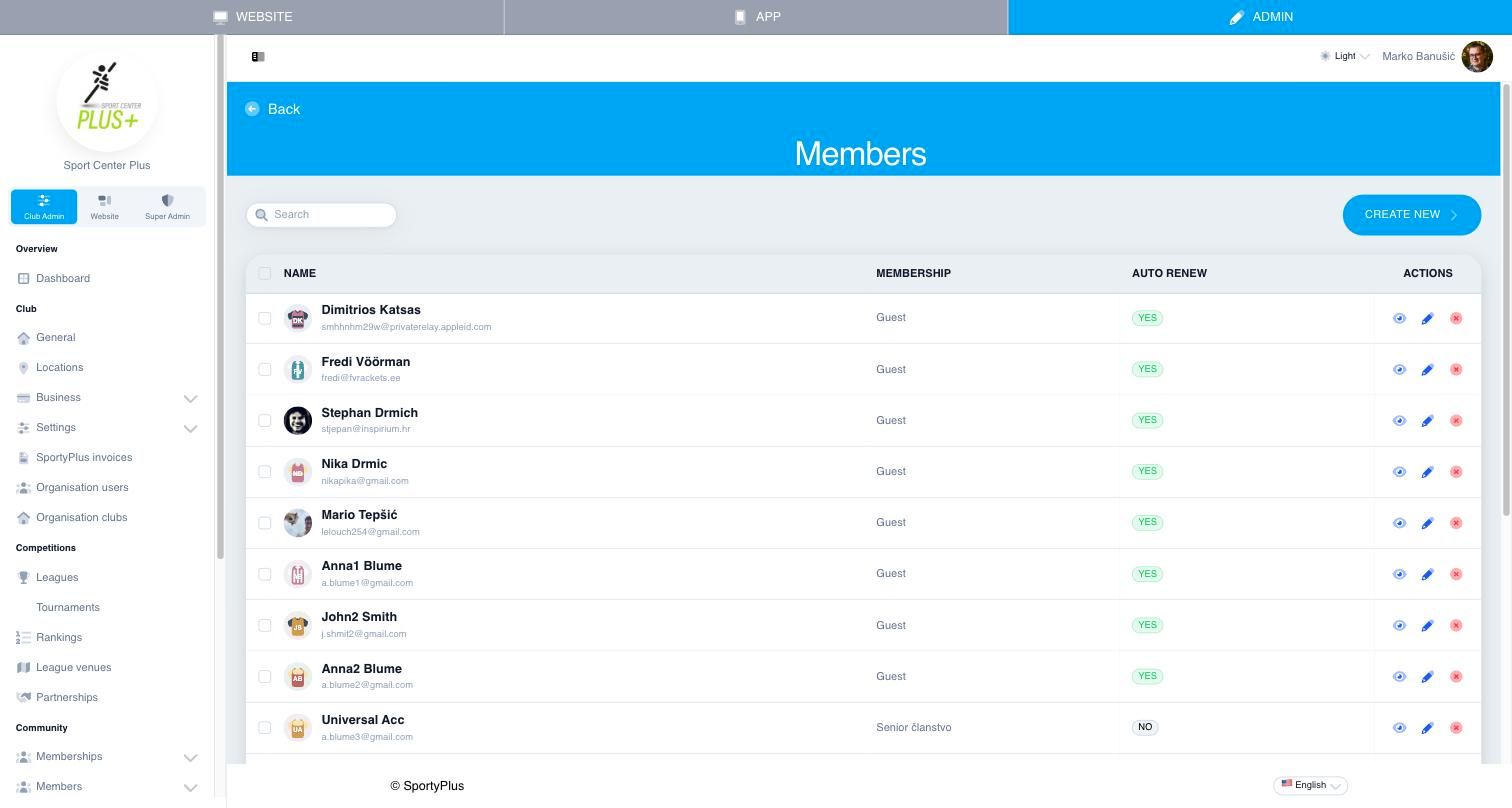
- Name — the member's name, with their email underneath.
- Membership — their membership, its end date, and "+N" if they hold more than one.
- Auto renew — whether that membership renews automatically.
Use Search to find someone by name or email. The list shows 15 people per page.
The icons on each row:
- The eye and the pencil both open the member's page.
- The red cross removes the member from your club (see Removing a member).
Adding a member
Choose Create new on the member list.
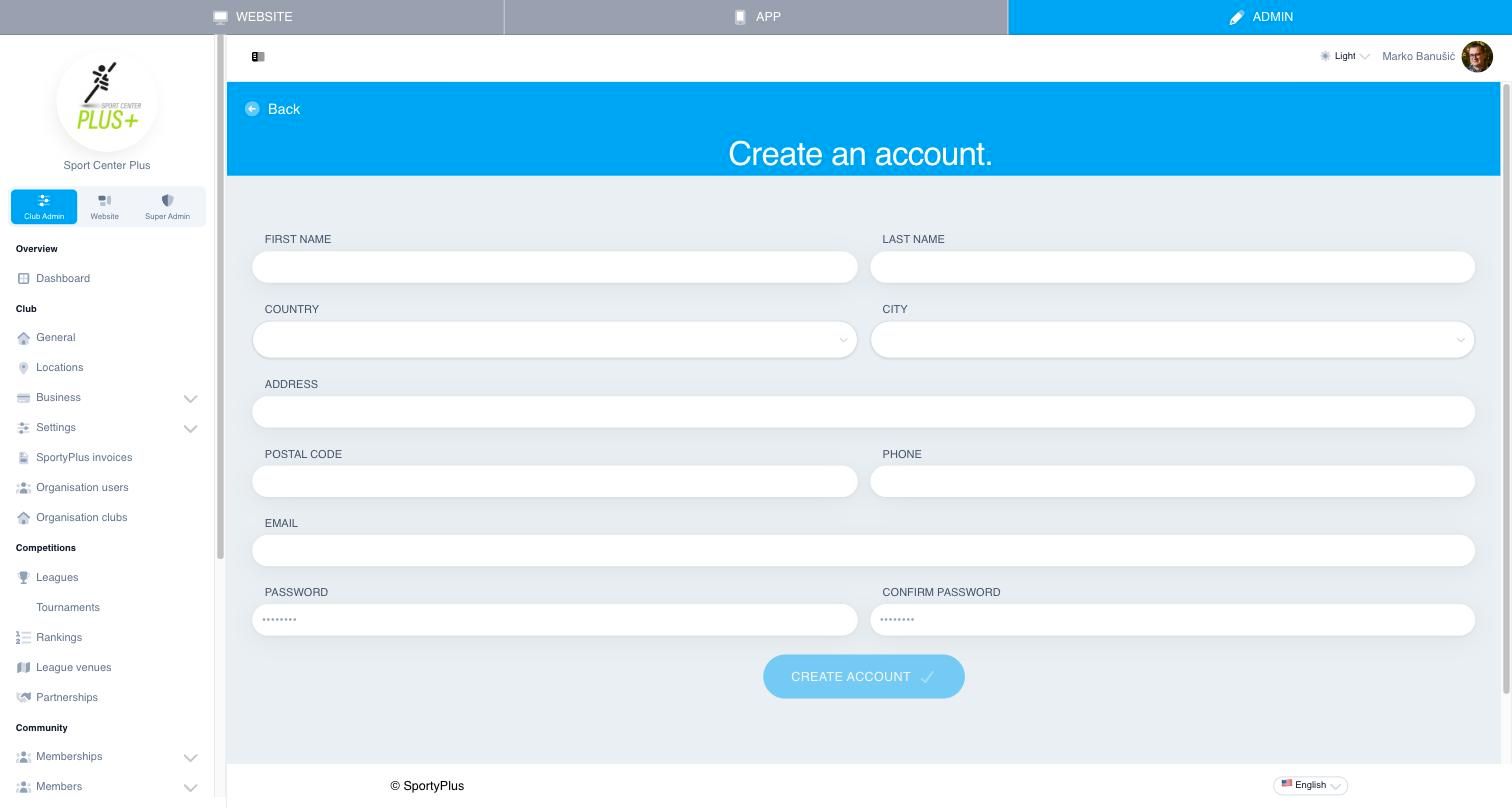
- Fill in the first and last name, country, city, postal code, phone and email. Only the street address is optional.
- Choose a password for them, and type it again under Confirm password.
- Choose Create account. The button stays disabled until every required field is filled in.
The new member is given your club's basic membership, and their page opens.
A member's page
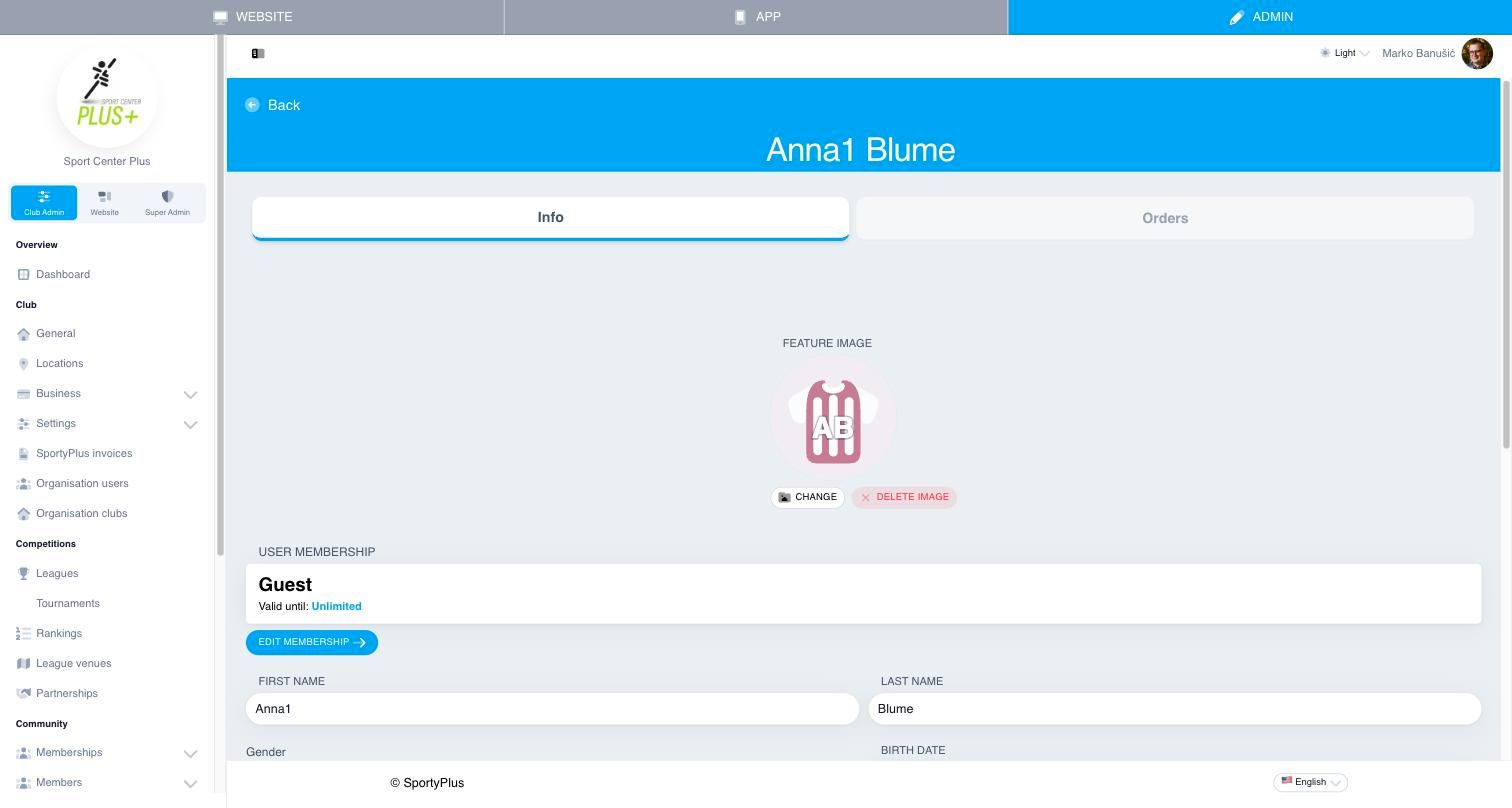
The Info tab holds the member's details: photo, name, gender, birth date, email, phone, tax ID (OIB), and address. Change what you need and choose Save at the bottom of the page.
On the same tab:
- User membership lists their memberships, and how long each is valid.
- Change password sets a new password for them.
- Assign role to member gives them one of your club's roles.
- Remove from club, at the bottom, takes them out of your club (see Removing a member).
The Orders tab lists everything they have bought from the club.
Changing a member's membership
On the member's page, choose Edit membership.
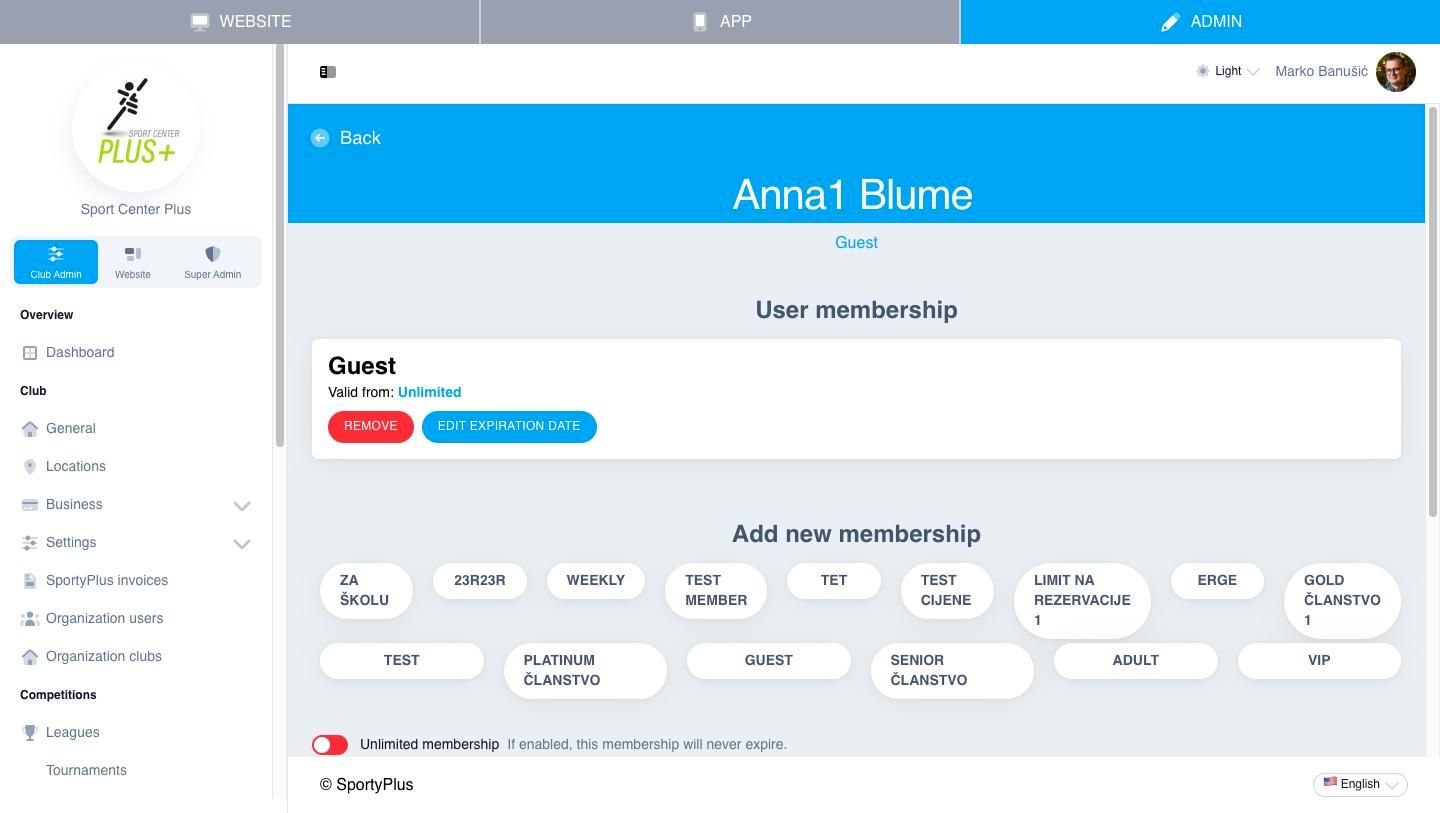
For each membership they hold, you can:
- Edit expiration date — change when it starts and ends, for example to extend a membership as a goodwill gesture.
- Remove — take the membership away.
To give them another membership, for example one they paid for at the desk:
- Under Add new membership, pick the plan.
- Switch on Unlimited membership for one that never expires, or set its start and end dates.
- Choose Assign membership. The button stays disabled until you pick a plan.
A member can't hold the same plan twice. Members usually get a paid membership by buying it themselves, on your website or in the app.
Removing a member
The red cross on the member list, or Remove from club on a member's page, takes someone out of your club. To remove several people at once, tick them and choose Delete selected.
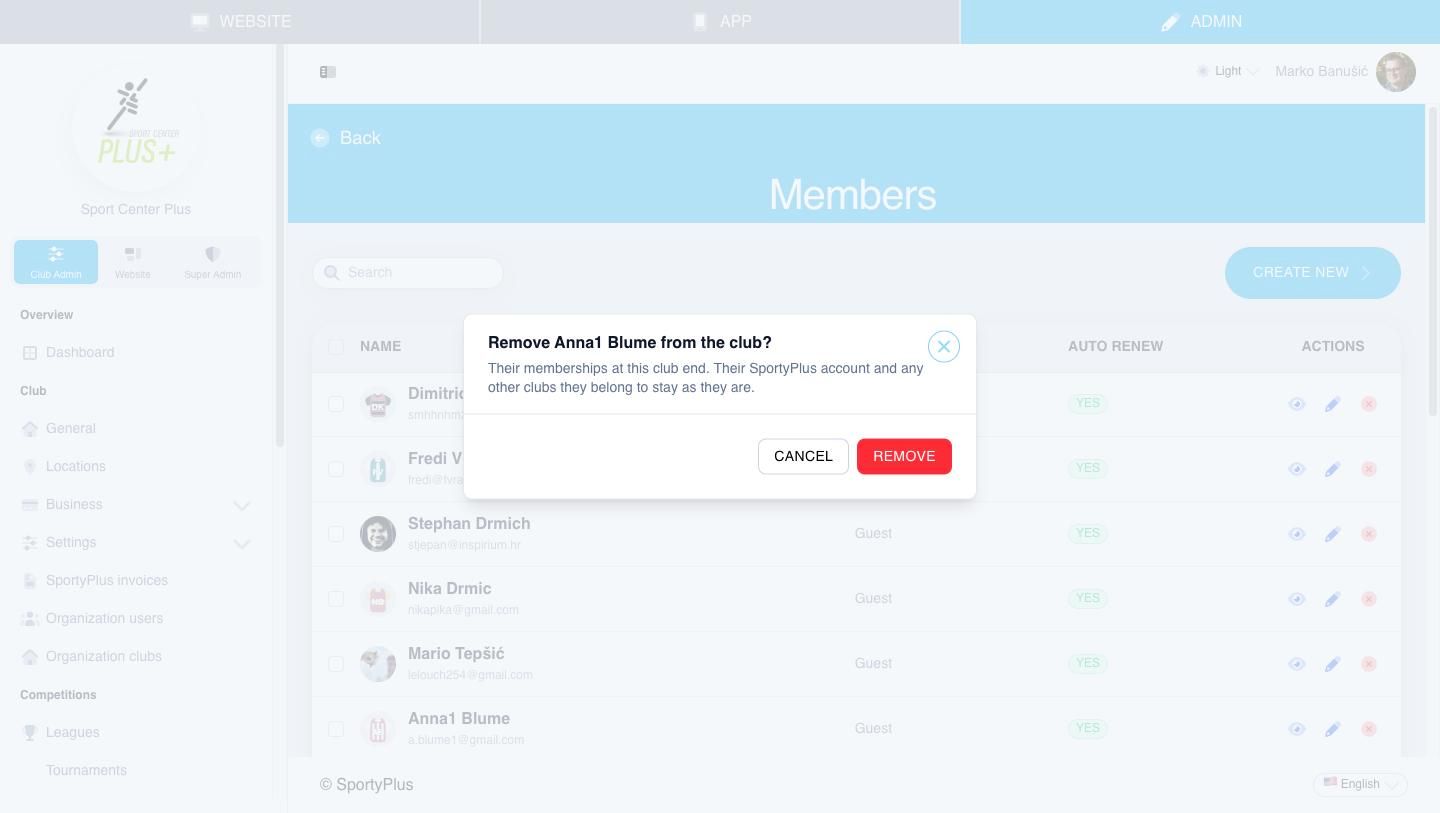
Their memberships at your club end, and they can no longer book here. Their SportyPlus account stays, along with any other clubs they belong to. They can join your club again later.
Removing someone doesn't change their staff access. To take that away, remove them under Administrators.
People delete their own SportyPlus account themselves, from My profile.
Approving new members
If your club approves sign-ups by hand (Settings → Signup → Validate users), new people wait in Members → Pending requests until you let them in. Until then they can't book.
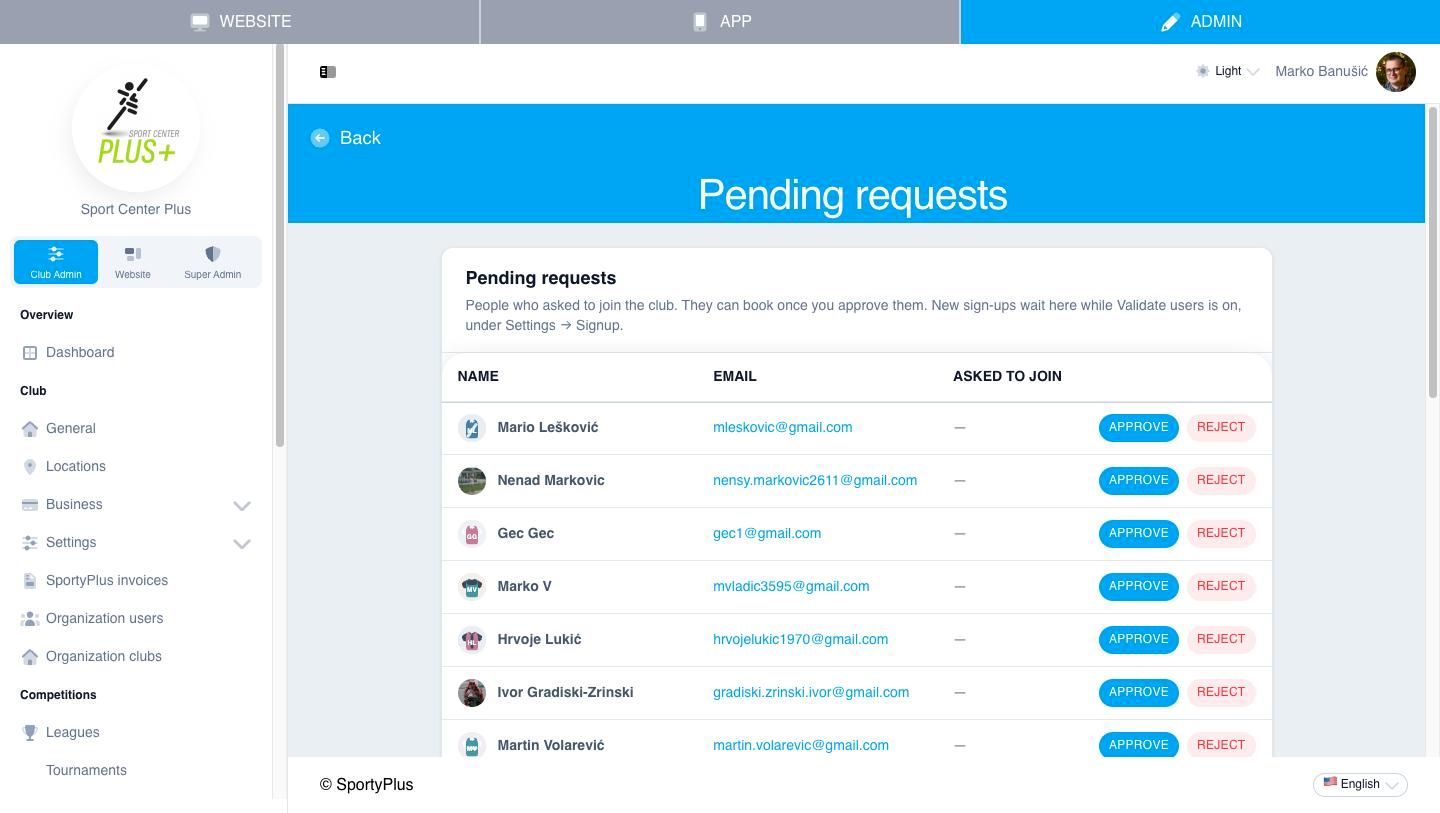
- Approve makes them a member and gives them your club's basic membership. If you have a "user joined the club" email template, they receive it.
- Reject turns the request down, after you confirm. They can't book at your club, but their SportyPlus account stays, and they can ask again.
Staff
Staff accounts are covered in Administrators and roles.