Shelly
SportyPlus is a registered integrator for Shelly Cloud. Please use the Shelly app to connect your devices to Shelly Cloud.
After your devices are working with Shelly Cloud, use these instructions to connect them to SportyPlus.
Wiring — Shelly 1 Mini Gen4 (door opening)
To open doors via SportyPlus, wire a Shelly 1 Mini Gen4 to the dry contact input of your door controller.
Requirements:
- permanent 230 V AC power supply
- a dry contact input on the door controller
- Wi-Fi network with internet access
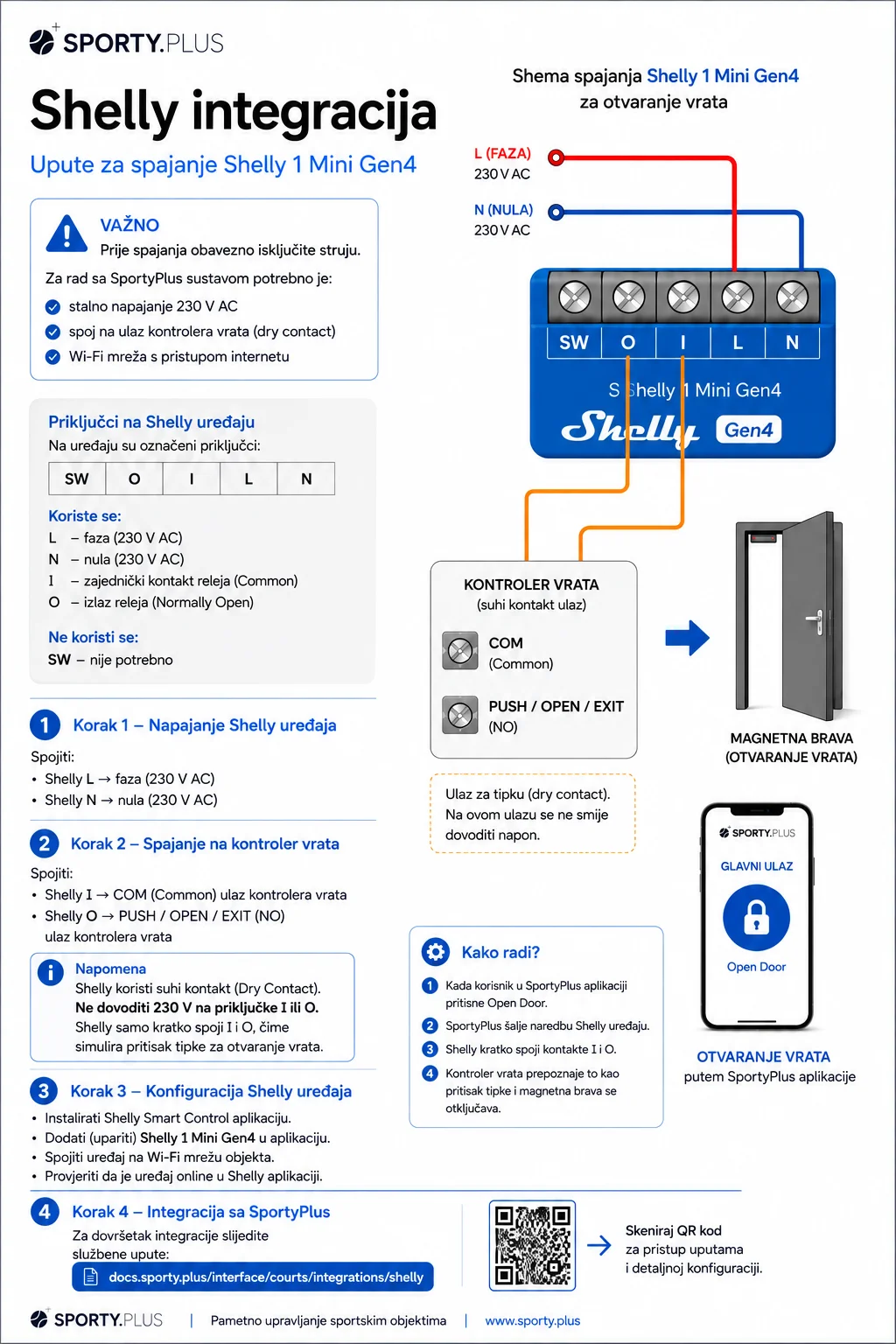
Terminals
| Terminal | Purpose |
|---|---|
L | phase (230 V AC) |
N | neutral (230 V AC) |
I | relay common contact (Common) |
O | relay output (Normally Open) |
SW | not used |
Step 1 — Power the Shelly device
- Shelly
L→ phase (230 V AC) - Shelly
N→ neutral (230 V AC)
Step 2 — Connect to the door controller
- Shelly
I→COM(Common) input of the door controller - Shelly
O→PUSH / OPEN / EXIT(NO) input of the door controller
The Shelly briefly closes the contact between I and O, simulating a button press that tells the door controller to release the lock.
Step 3 — Configure the Shelly device
- Install the Shelly Smart Control app.
- Add (pair) the Shelly 1 Mini Gen4 in the app.
- Connect the device to the venue's Wi-Fi network.
- Verify the device is online in the Shelly app.
How it works
- A user presses Open Door in the SportyPlus app.
- SportyPlus sends the command to the Shelly device.
- The Shelly briefly closes the
IandOcontacts. - The door controller registers it as a button press and the lock releases.
Once the device is online in Shelly Cloud, continue with the steps below to connect it to SportyPlus.
Authorization
In order for us to be able to connect to Shelly Cloud, an admin needs to authorize access.
Please visit: /admin/app/business/integrations/shelly as a club admin. Click on the Authorize devices button.
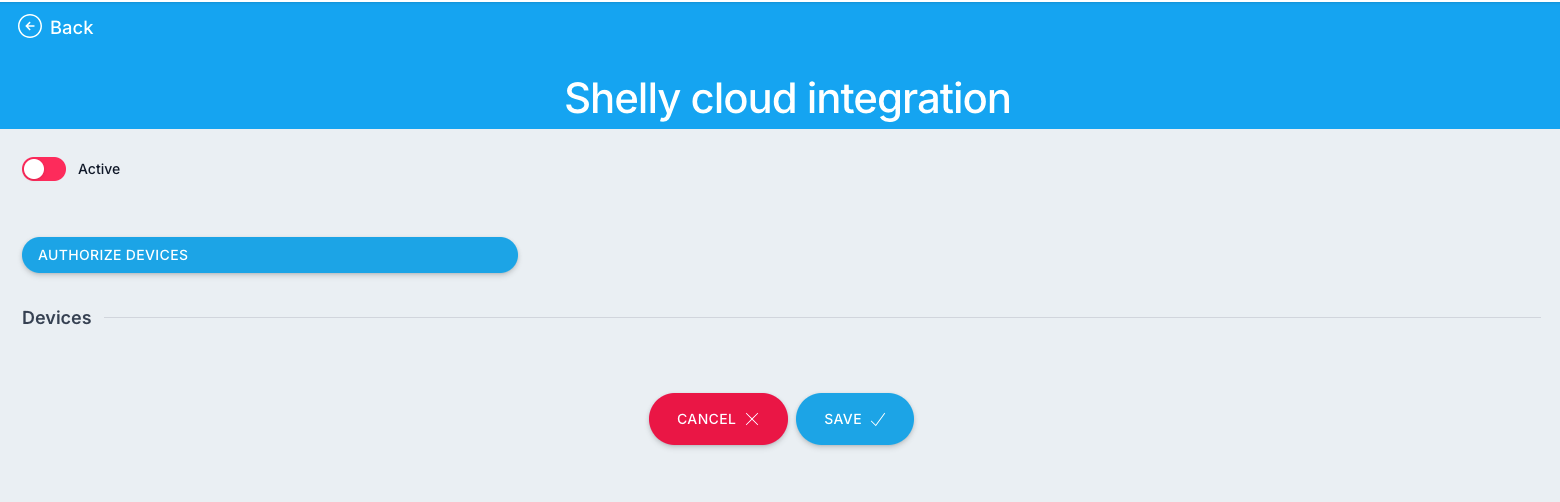
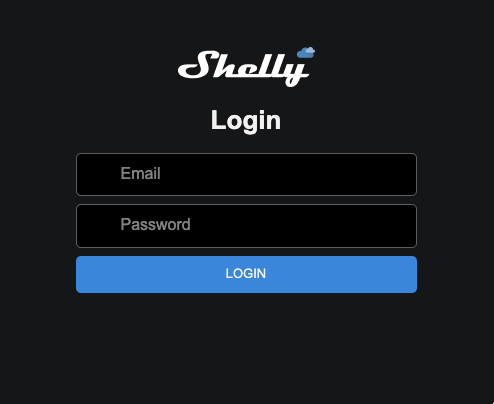
You will be redirected to Shelly website where you will need to log in with Shelly Cloud credentials.
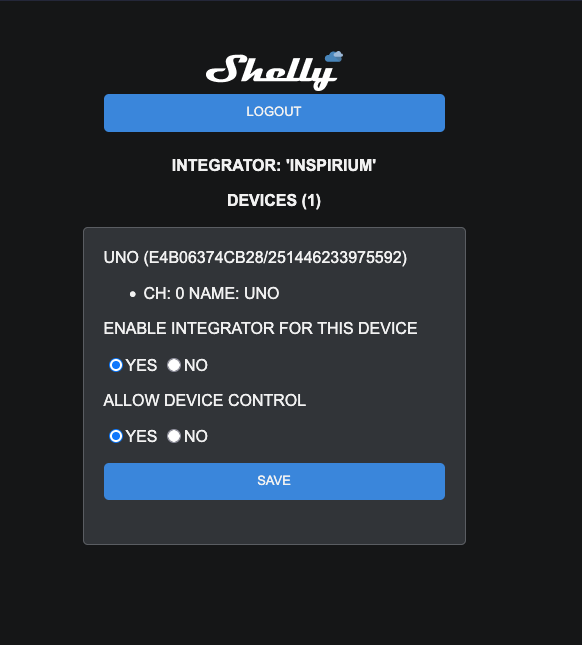
After successful login, all of your devices will be listed. Click on each one and enable both checkboxes and Save:
Pair devices
After you authorize all the required devices, please return to /admin/app/business/integrations/shelly. You will now have a list of authorized devices.
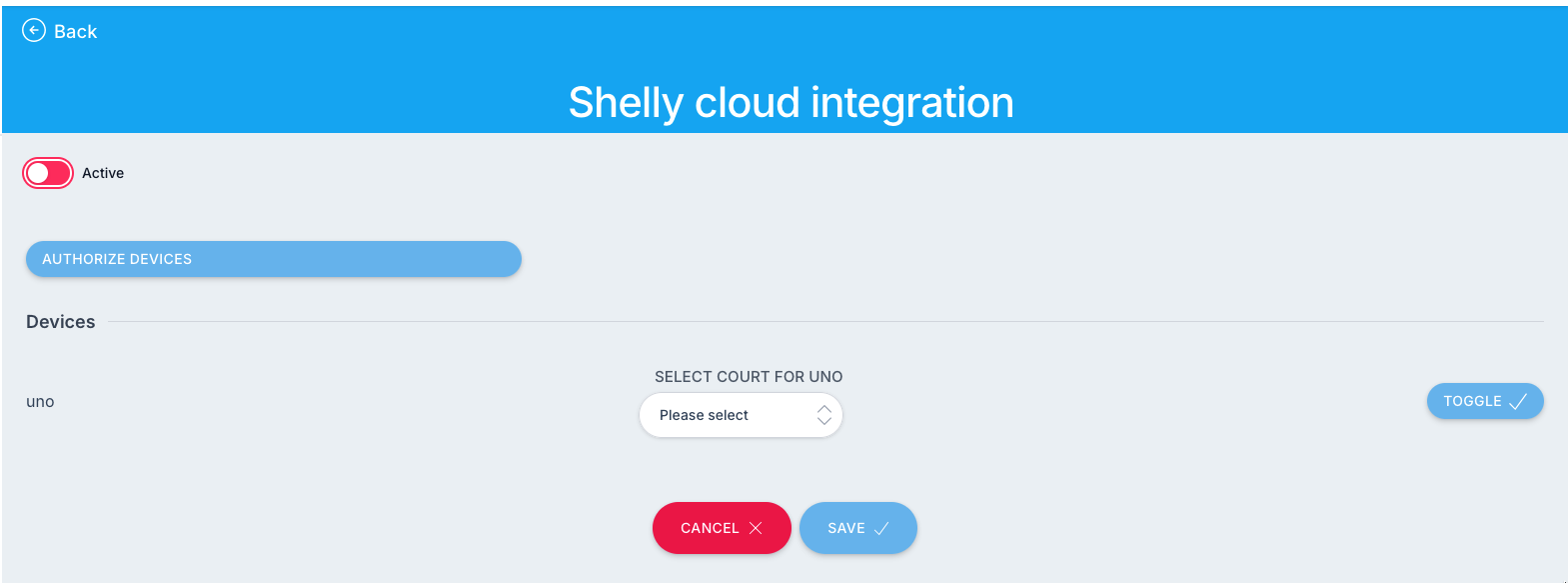
You may test the integration with the toggle button. The button will send the toggle request to the device.
Please use this screen to pair up all the devices to courts in your club. That will enable the Lights switch in the app. Make sure to also check Active switch to enable integration.