Settings
Club-wide configuration lives under Club Admin → Club.
General
Club Admin → General holds your club's identity: name, logo, subdomain/domain, description, language, contact details, socials, and address. It also sets the club type (Classic, Academy, or Fitness), which determines whether modules like the Academy Manager are shown, and whether access management (hardware integrations) is enabled.
Business
- Company info — legal/billing details for your organization
- Payment gateway — see Payments
- Integrations — hardware and third-party integrations (see Courts → Integrations)
Signup
Settings → Signup controls how new users join your club:
- Validate users — require admin approval before new users can interact with the club (approvals show up under Members → Pending requests)
- Require user to join club — force a join step before booking
- Membership purchase options — customize the message and call-to-action shown during signup
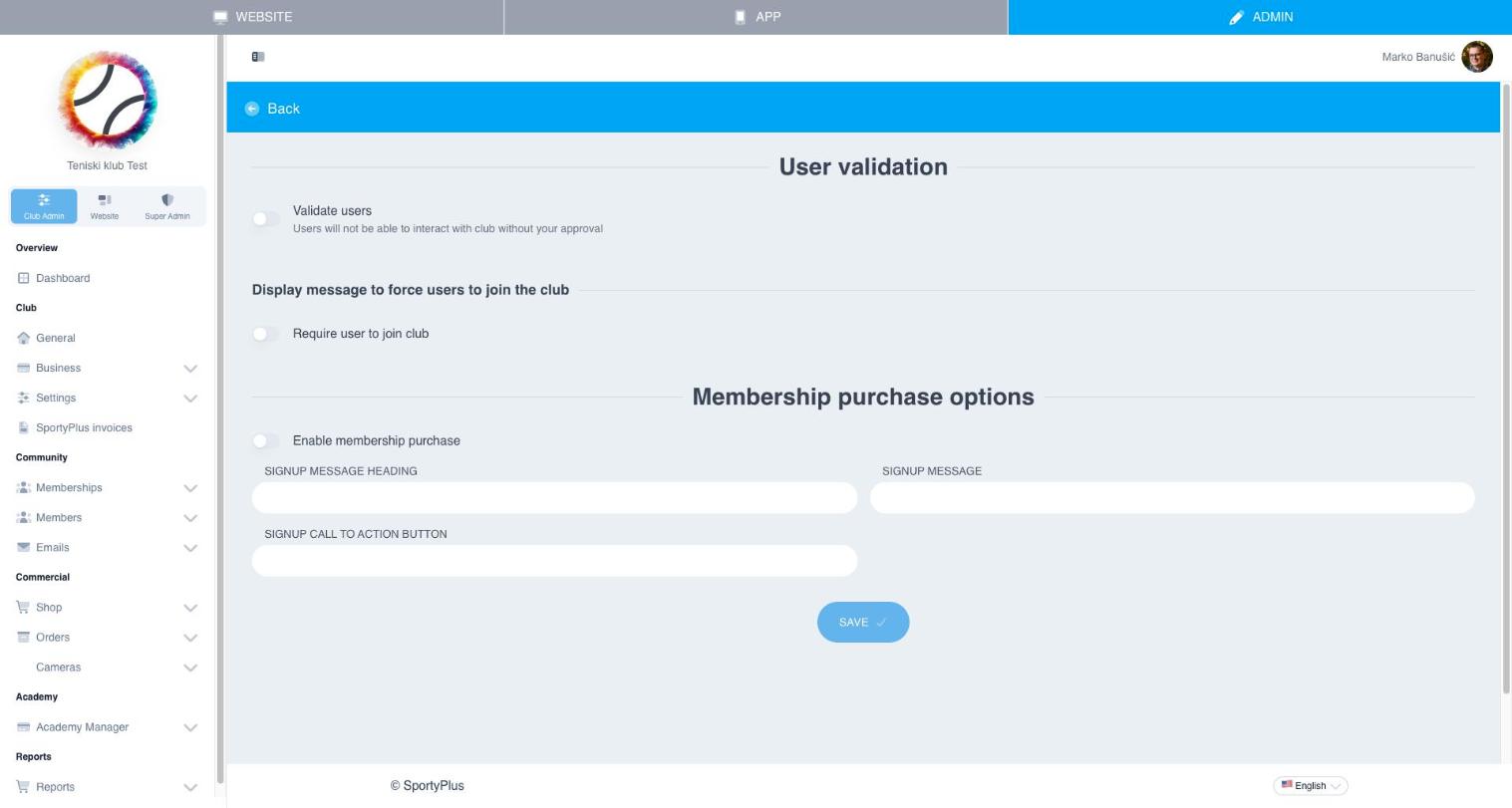
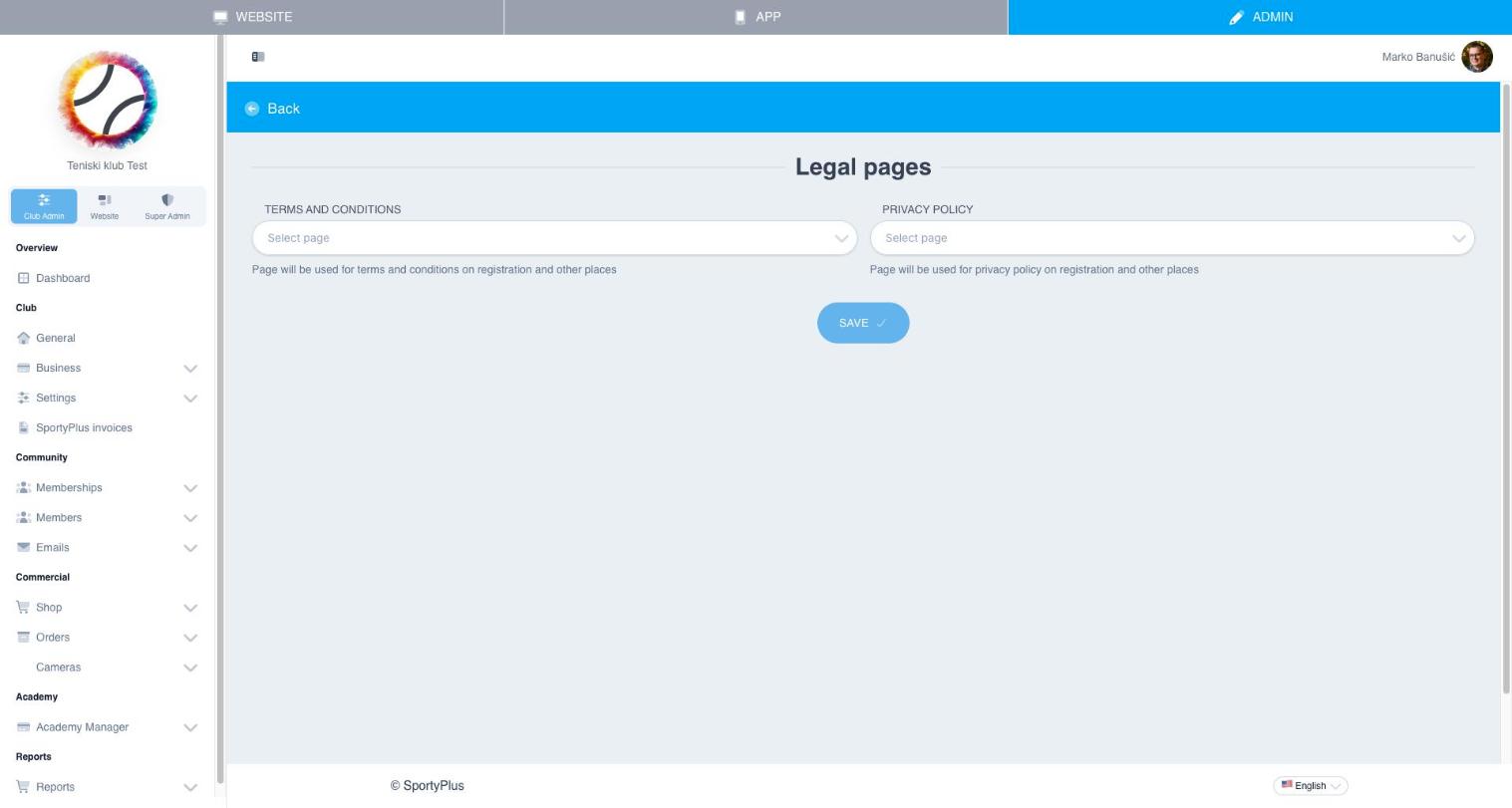
Legal
Settings → Legal lets you pick which of your website pages serve as your Terms and conditions and Privacy policy, shown during registration and elsewhere.
Display, Invoices, Roles
- Display — visual/display preferences for the club interface
- Invoices — invoicing configuration for orders
- Roles — staff roles and permissions, controlling what each admin/cashier/trainer account can access
API clients
Settings → API clients is where other software connects to your club. It has two lists.
Your applications are ones built for this club. New application gives one a client id and a secret. The secret is shown once; copy it then, or issue a new one with New secret. Remove switches the application off everywhere, immediately.
Applications with access to this club are ones built by someone else, such as a booking marketplace or a venue manager, that you have allowed to act for the club. Each one lists what it may do. Withdraw takes that away immediately; you can grant it again later.
Booking webhooks
An application that keeps its own booking diary in step with yours is told about bookings made here through a booking webhook: an address on its side that Sporty sends every change to. The application sets the address itself (see Syncing bookings). Where it has, you see a box under the application with the following:
- the address;
- Delivering when it is receiving changes, Failing when it is not, or Nothing sent yet;
- when it last received anything;
- while it is failing, since when and why.
A failing webhook loses nothing. Changes are resent every minute until the application accepts them, but its copy of your diary is out of date meanwhile. Tell the application's supplier.
Stop turns the webhook off and leaves the application's access in place. Use it for an address you do not recognise, or one that has been failing for days. The application can set a new webhook; to keep it off, Withdraw its access.