Video and cameras
Connect cameras to your courts to record matches automatically and let members watch or download footage of their sessions.
Manage this from Club Admin → Commercial → Cameras.
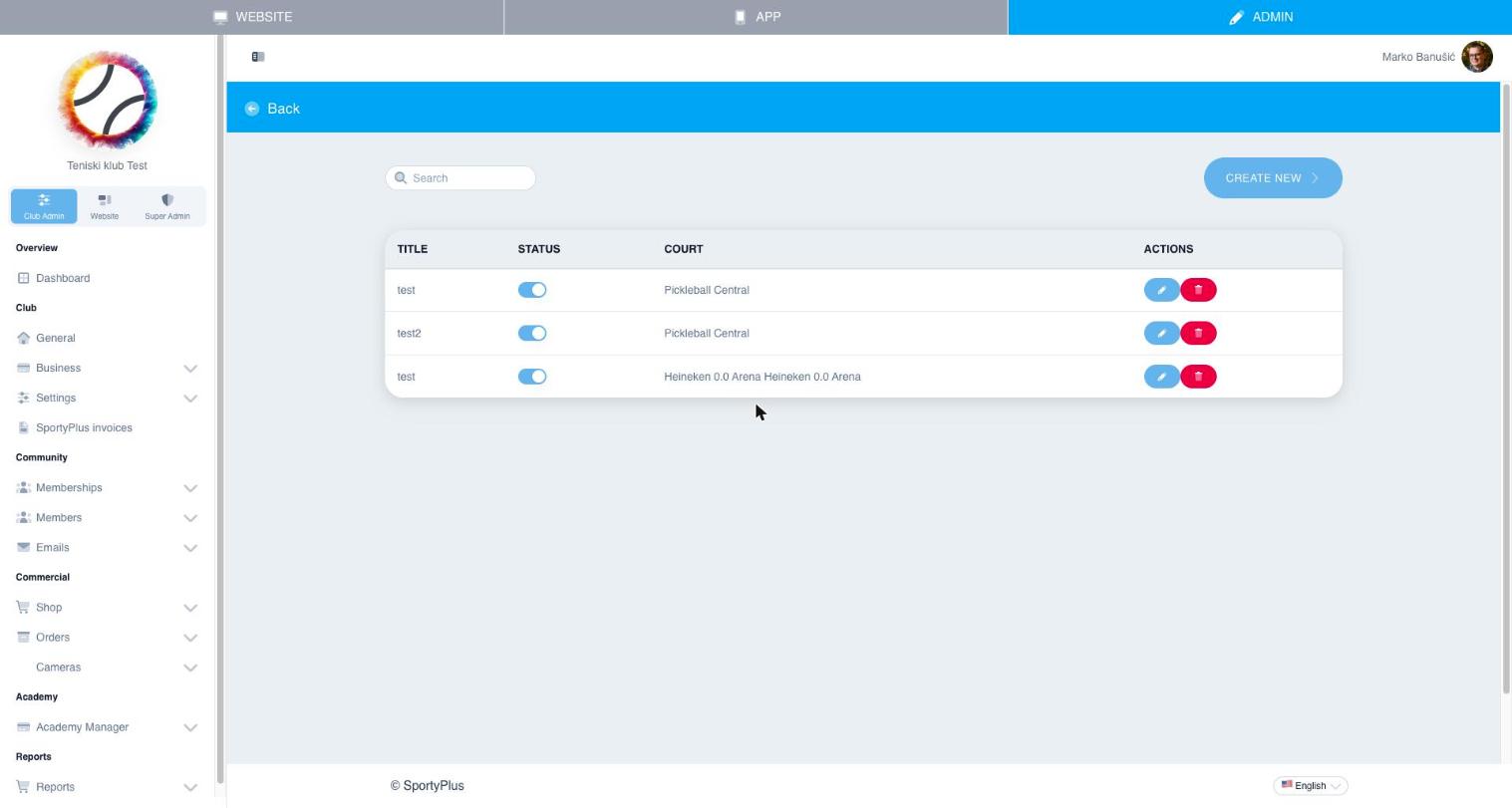
Cameras
Each camera is linked to a specific court. Use the status toggle to enable or disable a camera, and Create new to add one.
Recordings
Videos lists every recording, filterable by camera, along with its status and file size.
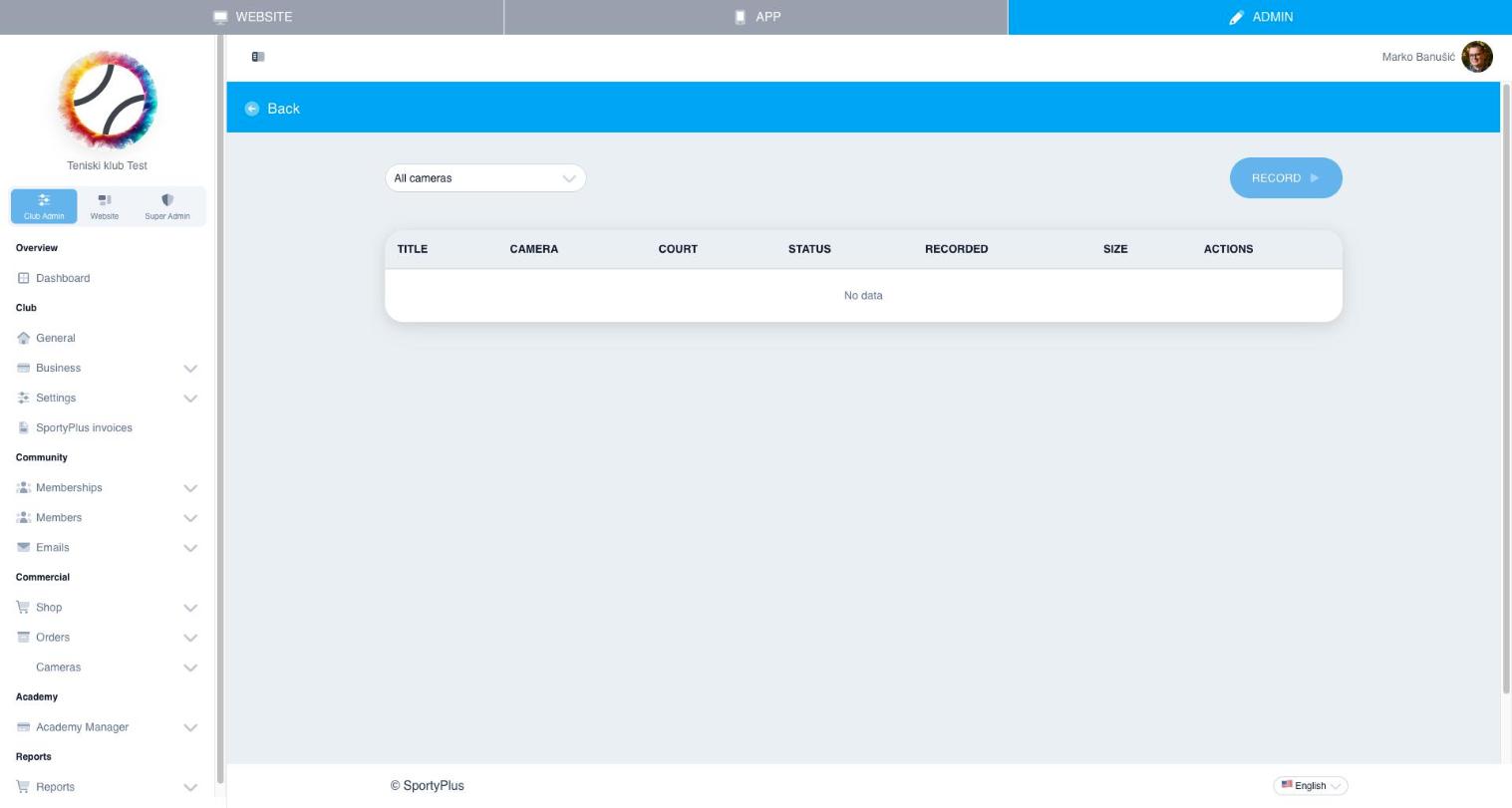
Recordings are normally captured automatically for reservations on a court with an active camera, but you can also trigger a manual recording with Record.
Setting up a camera
Any camera that can push an RTMP stream works — see Other RTMP cameras for the settings, whatever the make.
The settings matter more than the camera does. A camera left on its factory preset usually streams, but with live view a minute or more behind the court, and that is a setting rather than a fault.
Cameras that survive a connection drop
If the club's internet drops mid-match, that part of the recording is normally lost. Dahua cameras registered on DoLynk Cloud also record to an SD card inside the camera, so SportyPlus can fetch the missing minutes afterwards and complete the recording.
They can also be configured from SportyPlus rather than on the venue network, which is the difference between a settings change and a site visit.
See Dahua cameras for how to set one up.