Enrolment forms
An enrolment form replaces the paper sign-up form your school hands out each season. You publish a link (and its QR code), parents fill it in on your club website, and every request lands in Club Admin → Academy Manager → Enrolment. You accept or decline it there. Accepting puts the child on the programme at the right monthly price, so academy billing picks it up with no typing.
What a parent fills in:
- the programme, from the ones you put on the form;
- the child: one of their children already on their account, or a new one;
- the child's date of birth, gender, OIB and address, which are saved to the child's profile;
- their phone, and optionally a second parent's name, phone and email;
- your own questions;
- each of your consents, one checkbox per clause;
- their full name, typed as the signature.
Parents need a SportyPlus account. If they don't have one, they create it from the form and come straight back to it. The child becomes a child on the parent's account (see My family), so invoices, reminders and the child's academy page reach the parent from day one.
Setting up a form
Club Admin → Academy Manager → Enrolment → Forms → New form
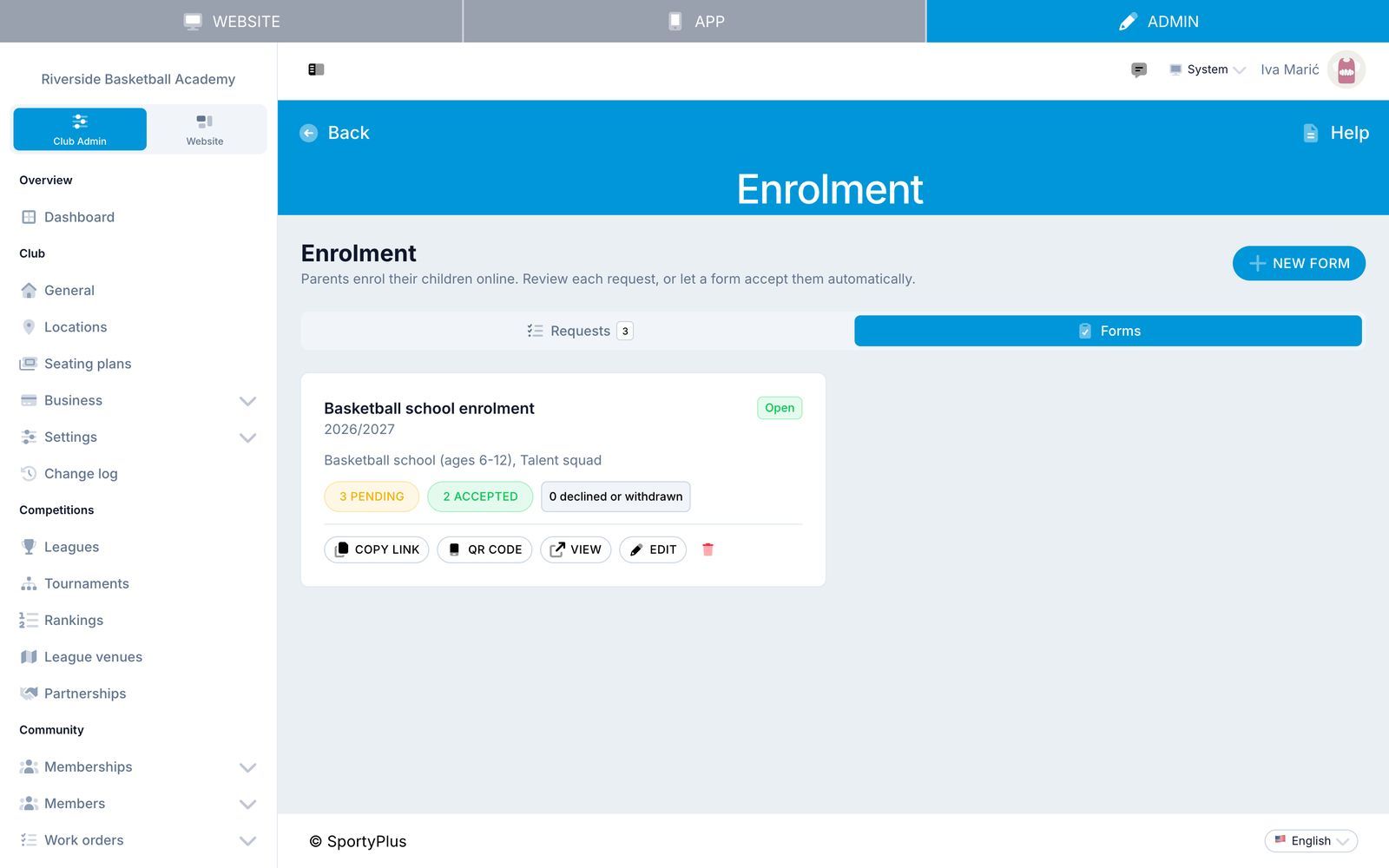
You need at least one programme first (Academy Manager → Programs). A club can have several forms, for example one per season or one per age group.
The form
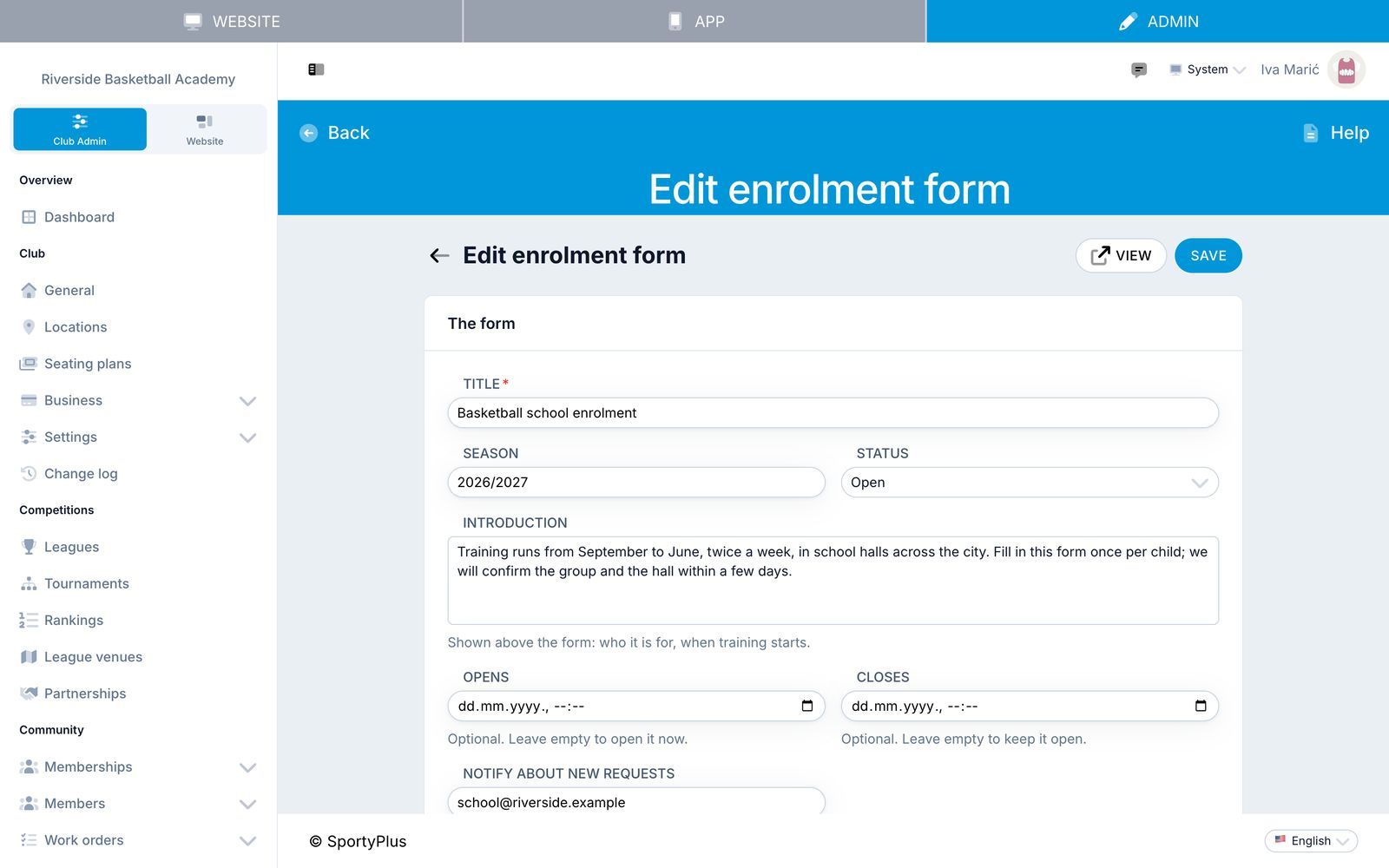
- Title, Season (such as 2026/2027) and Introduction: shown at the top of the form. Use the introduction for who the programme is for and when training starts.
- Status: Open or Closed. A closed form shows parents that enrolment is closed.
- Opens and Closes: optional dates. Before Opens and after Closes the form takes no requests, even if its status is open.
- Accept requests automatically: skip the review. Every request is accepted the moment it is sent, and billed. Leave it off if you want to check ages, groups or places first.
- Notify about new requests: an email goes to this address for every new request. Leave it empty to use the club's email address.
Programmes and prices
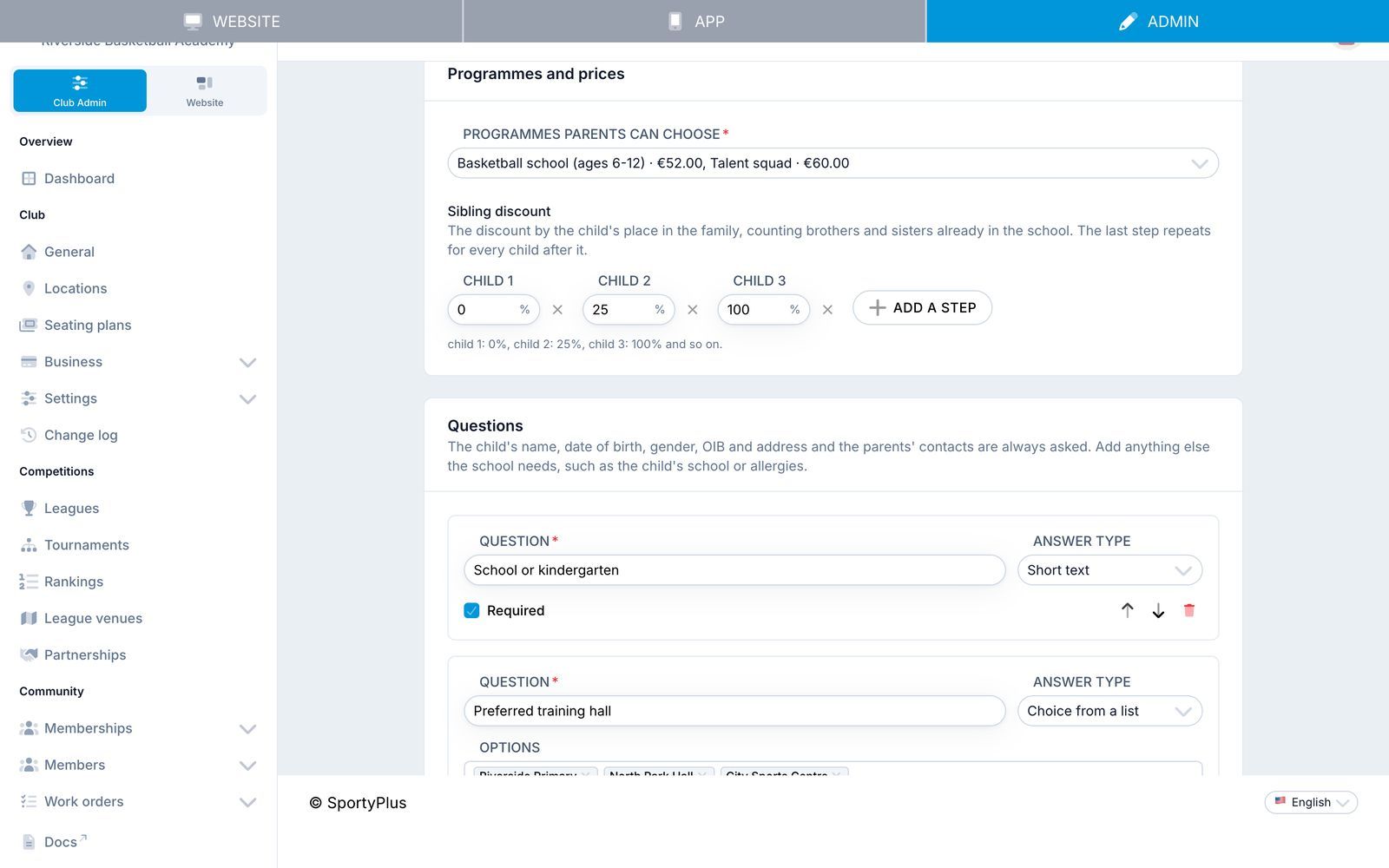
- Programmes parents can choose: the academy programmes on offer. Parents see each one with its monthly price.
- Sibling discount: the discount by the child's place in the family.
0,25,100means full price for the first child, 25% off for the second, and free for the third. The last step applies to every child after it.
A child's place in the family is one plus the number of their brothers and sisters who already have an active place in any programme of your school. Brothers and sisters are the other children of any of the child's parents. The discount is worked out again when you accept a request, since a sibling may have been accepted in the meantime, and you can still change the price when accepting.
Questions
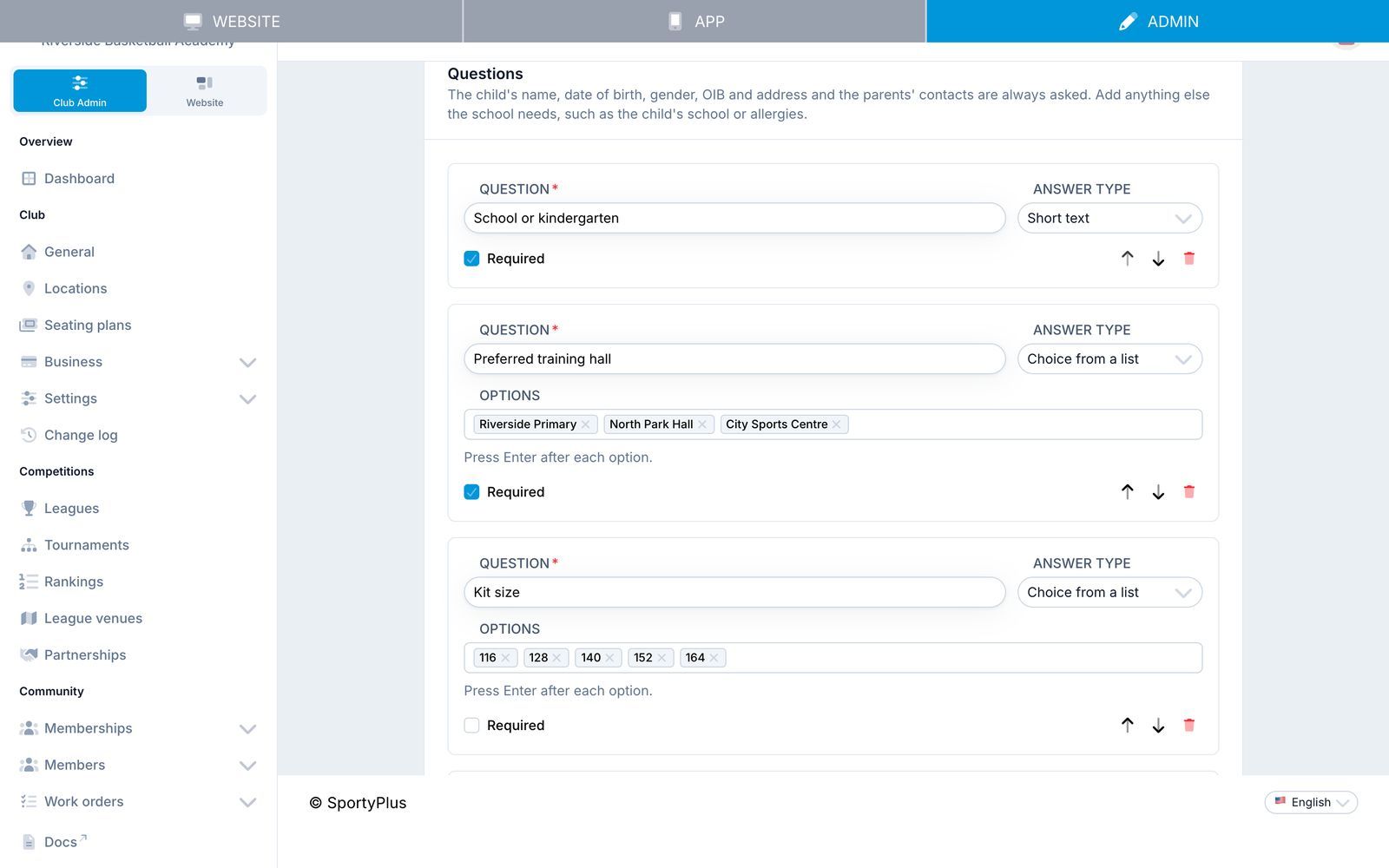
The child's name, date of birth, gender, OIB and address and the parents' contacts are always asked; add anything else your school needs. Each question has an Answer type:
- Short text and Long text
- Choice from a list: type the options and press Enter after each one
- Yes or no
- Date
Tick Required for questions that must be answered. Use Move up and Move down to order them.
Answers can include health information (allergies, conditions), so they are stored encrypted. Ask for medical certificates separately, under Medical.
Consents
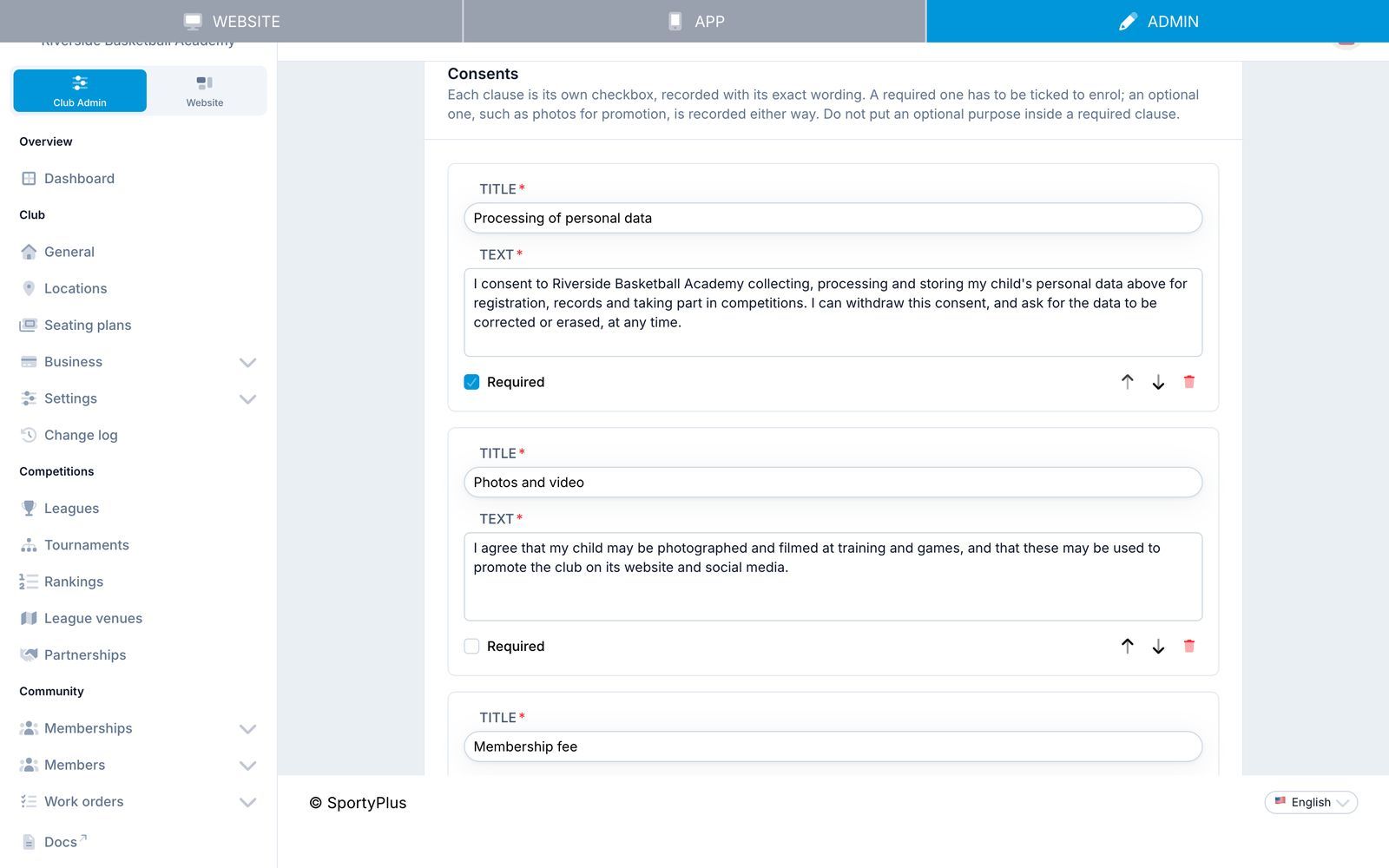
Each clause is its own checkbox with a Title and the full Text the parent agrees to. A new form starts with three clauses you can edit: processing of personal data, photos and video, and payment terms.
- Required clauses must be ticked before the form can be sent. Use them for what the child needs in order to train: the data you need to run the programme, and your payment terms.
- Optional clauses can be refused, and the refusal is recorded too. Photos and video for promotion belong here. Under the GDPR, consent to something optional can't be a condition of enrolling, so don't put an optional purpose inside a required clause.
Write the payment terms in full: the number of instalments, what happens with absences, how to leave the programme. That clause is what the parent signs.
Sharing the form
Save the form, then use the buttons on its card in Forms:
- Copy link: the form's page on your club website,
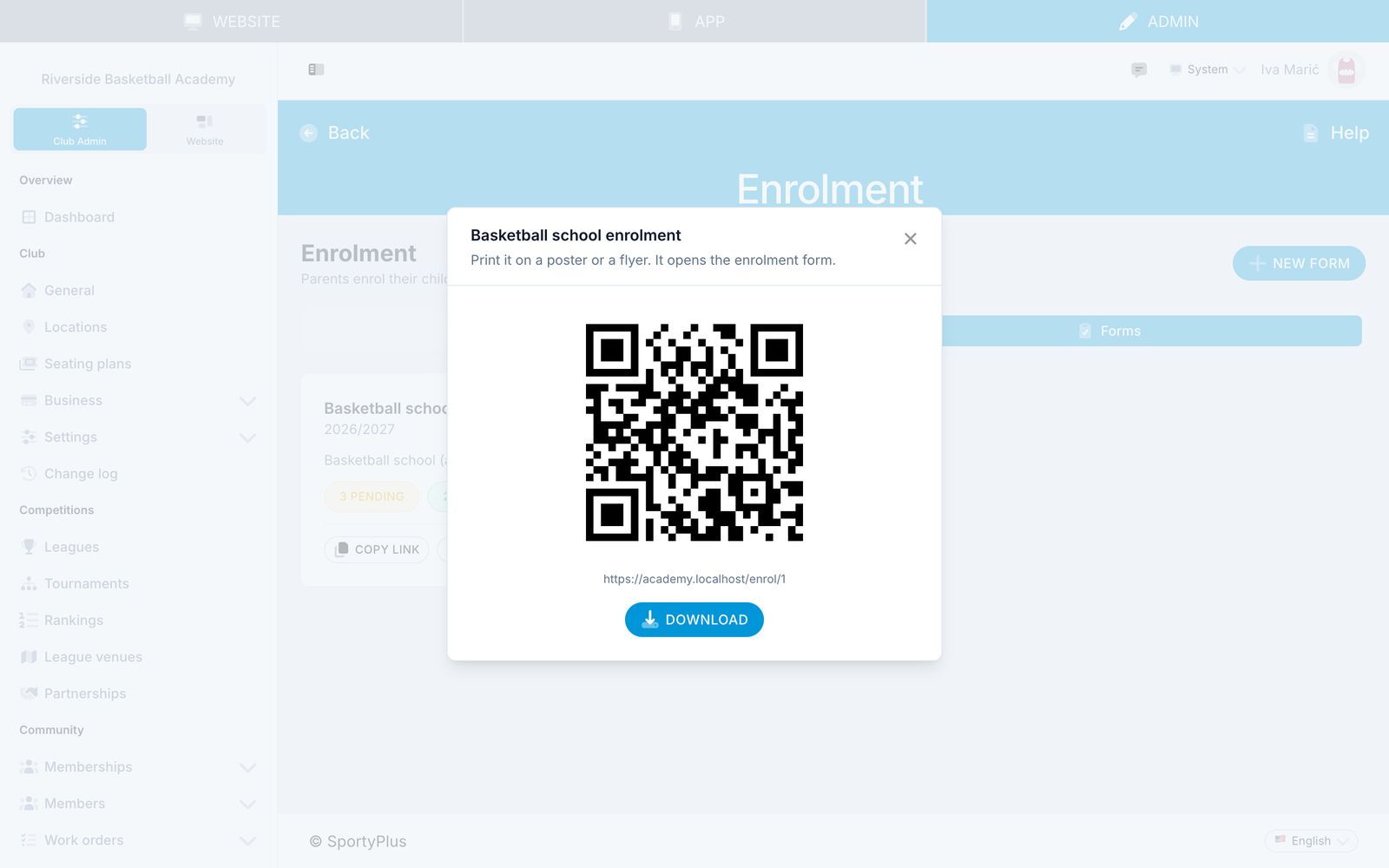
/enrol/<number>. - QR code: print it on a poster or a flyer. Download saves it as an image.
- View: open the form as parents see it.
Each form card also shows how many requests are pending, accepted, and declined or withdrawn.
Changing or closing a form
You can edit a form at any time. Requests already sent keep the questions and clause texts as they were when the parent signed, so changing the wording never changes what an earlier parent agreed to.
To stop taking requests, set Status to Closed or set a Closes date. Delete takes the form off your website; its requests are kept.
Reviewing requests
Club Admin → Academy Manager → Enrolment → Requests
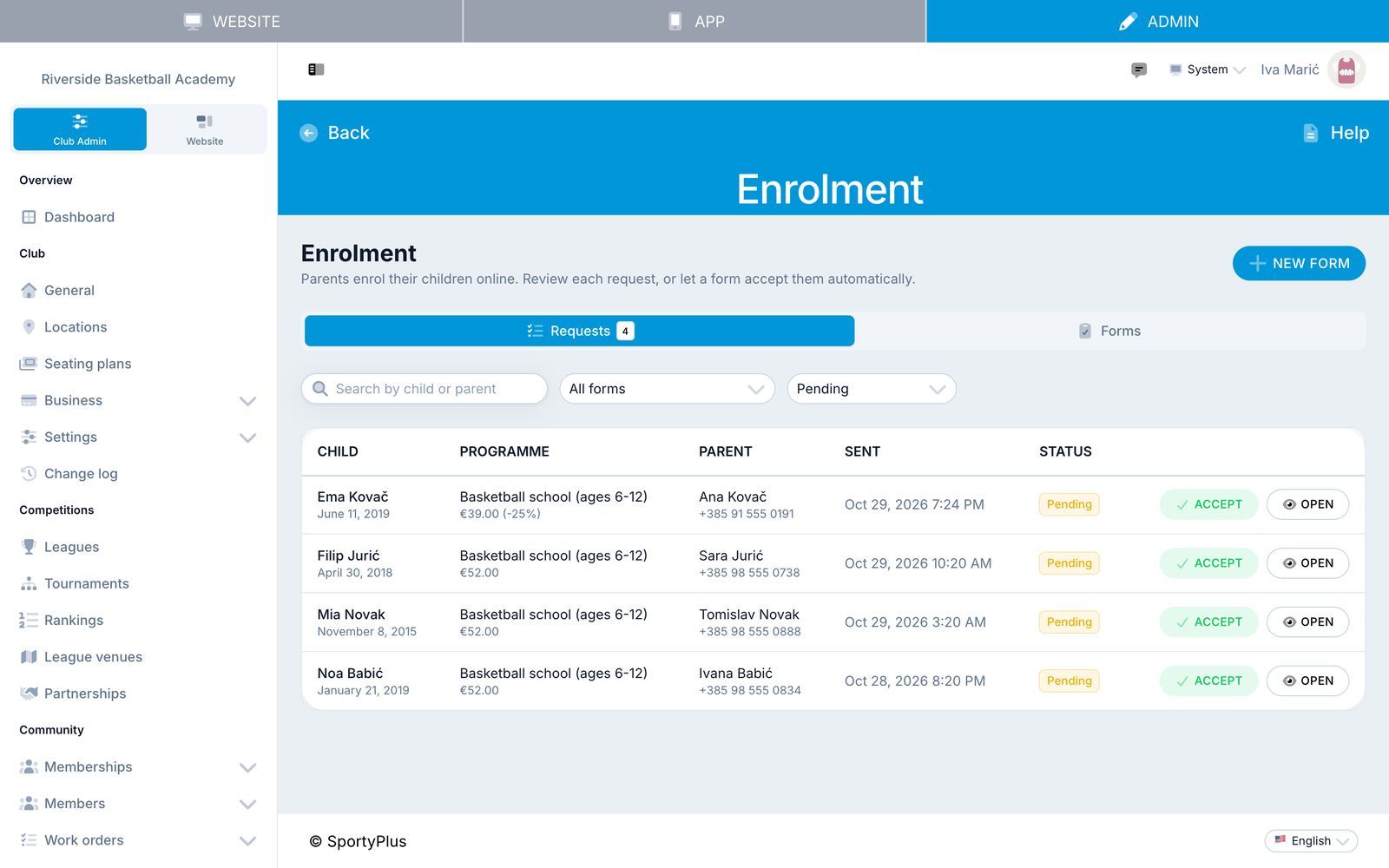
The list shows pending requests first. Filter by form and status, or search by the child's or the parent's name. The number on the Requests tab is how many are waiting for a decision.
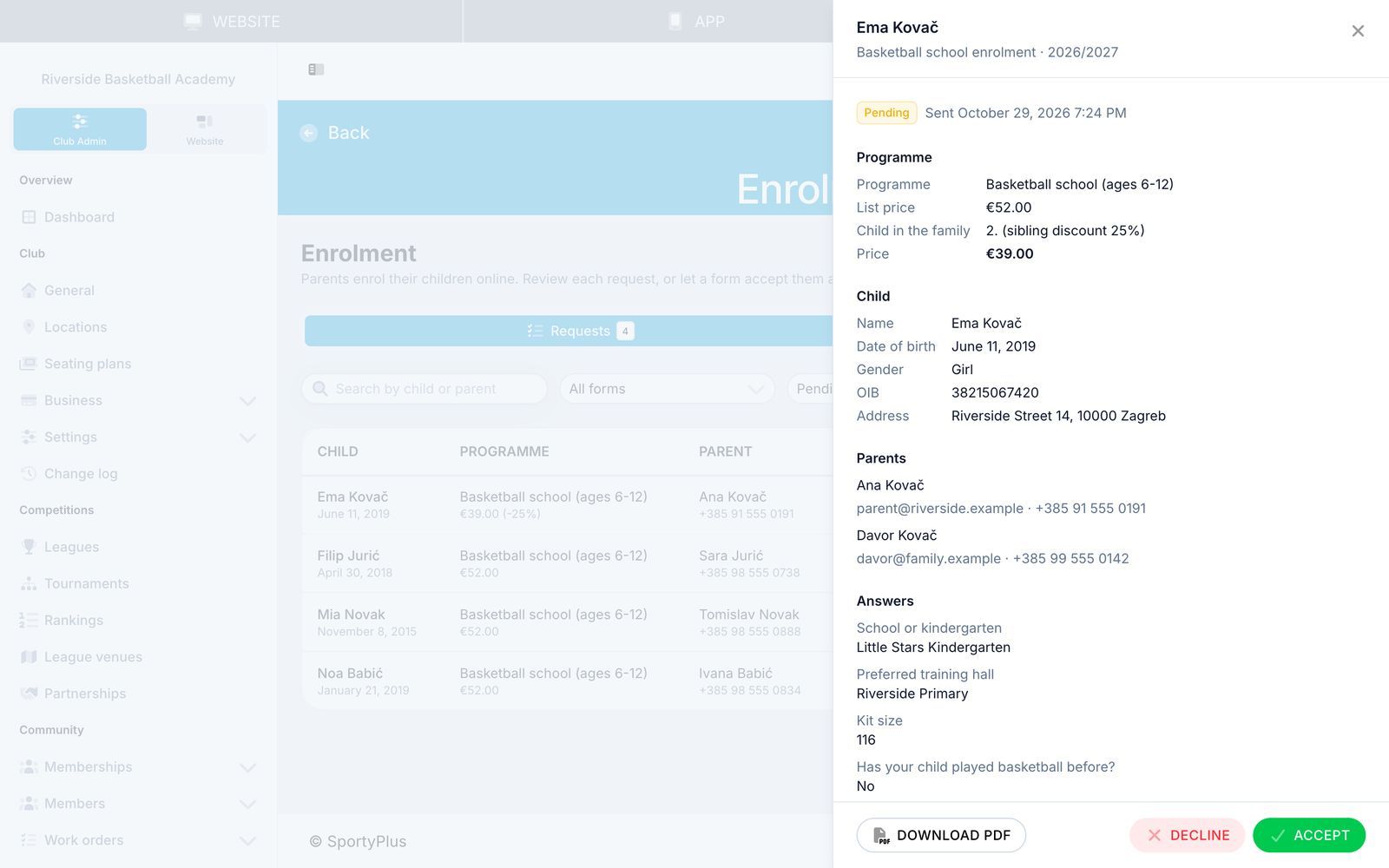
Open a request to see everything the parent sent: the programme, the list price, the child's place in the family and the price after the sibling discount, the child's details, both parents, the answers, and each consent with its exact wording, marked Agreed or Refused, followed by the signature and when it was given.
Accepting
Click Accept, check the Programme and Monthly price, and click Accept and enrol. You can move the child to another programme on the form or set a different price; the price you enter is what the child is billed.
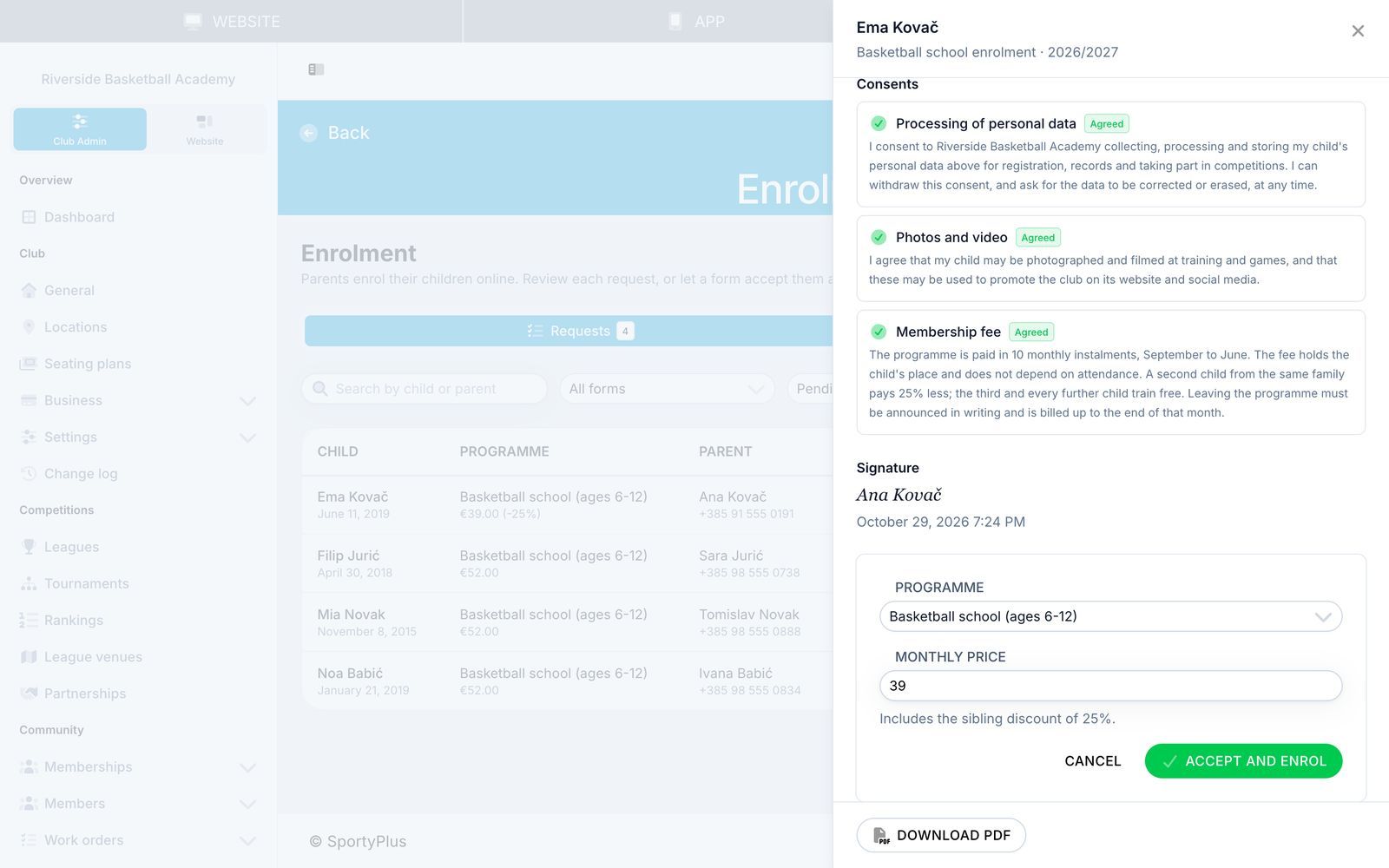
Accepting:
- puts the child on the programme with an active subscription at that price, which appears on the programme's page and the child's student page (Student page button);
- includes the child in your school's monthly billing from then on;
- emails the parent that the child is enrolled, with the monthly price.
The Accept button in the list accepts at once, with the requested programme and the discounted price.
Accepting doesn't charge a programme's one-off enrolment fee. If a programme has one, add it to the child's first invoice yourself.
Declining
Click Decline, write a Reason if you want to, and confirm. The parent gets an email with the reason, so write it to them.
The signed form as a PDF
Download PDF on any request gives the club's copy of the signed form: the child and parents, the answers, every clause with its wording and whether it was accepted, who signed and when, and who decided. The parent can download the same PDF.
Emails
| When | Who gets it |
|---|---|
| A request is sent | The parent: a confirmation with every clause and whether they accepted it. Your notify address: a new-request email linking to it. |
| You accept a request | The parent: the child is enrolled, with the monthly price. |
| A form accepts automatically | The parent, as when you accept. Your notify address, so you still know about the new child. |
| You decline a request | The parent, with your reason. |
Parents get them in their own language where SportyPlus has it (English and Croatian today), from your club's sending address.
What the parent sees
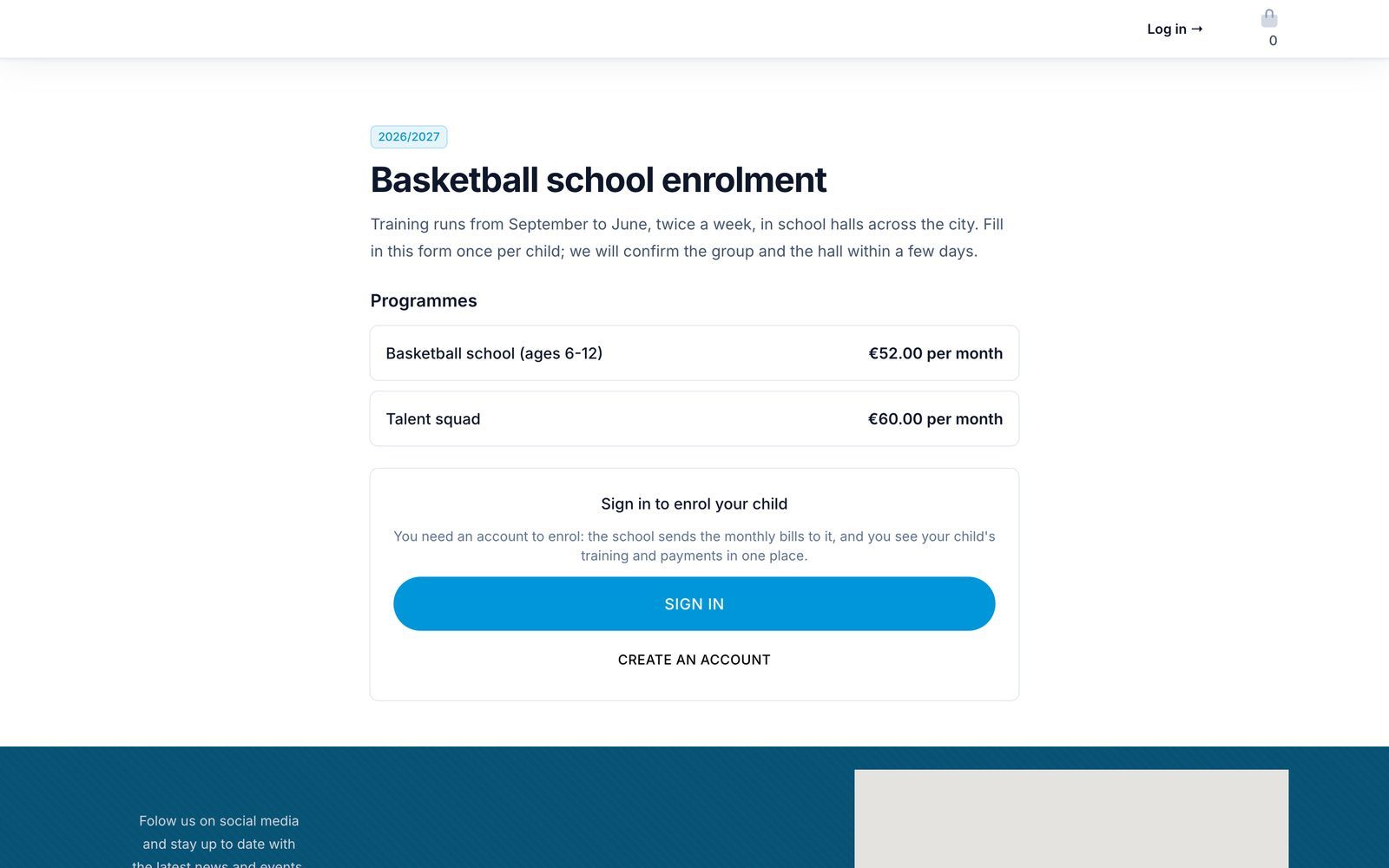
Signed out, parents see the form's introduction and programmes, with buttons to sign in or create an account. Signed in, they get the whole form. The sibling discount is shown before they sign. A child who already has a pending or accepted request on the form can't be chosen again.
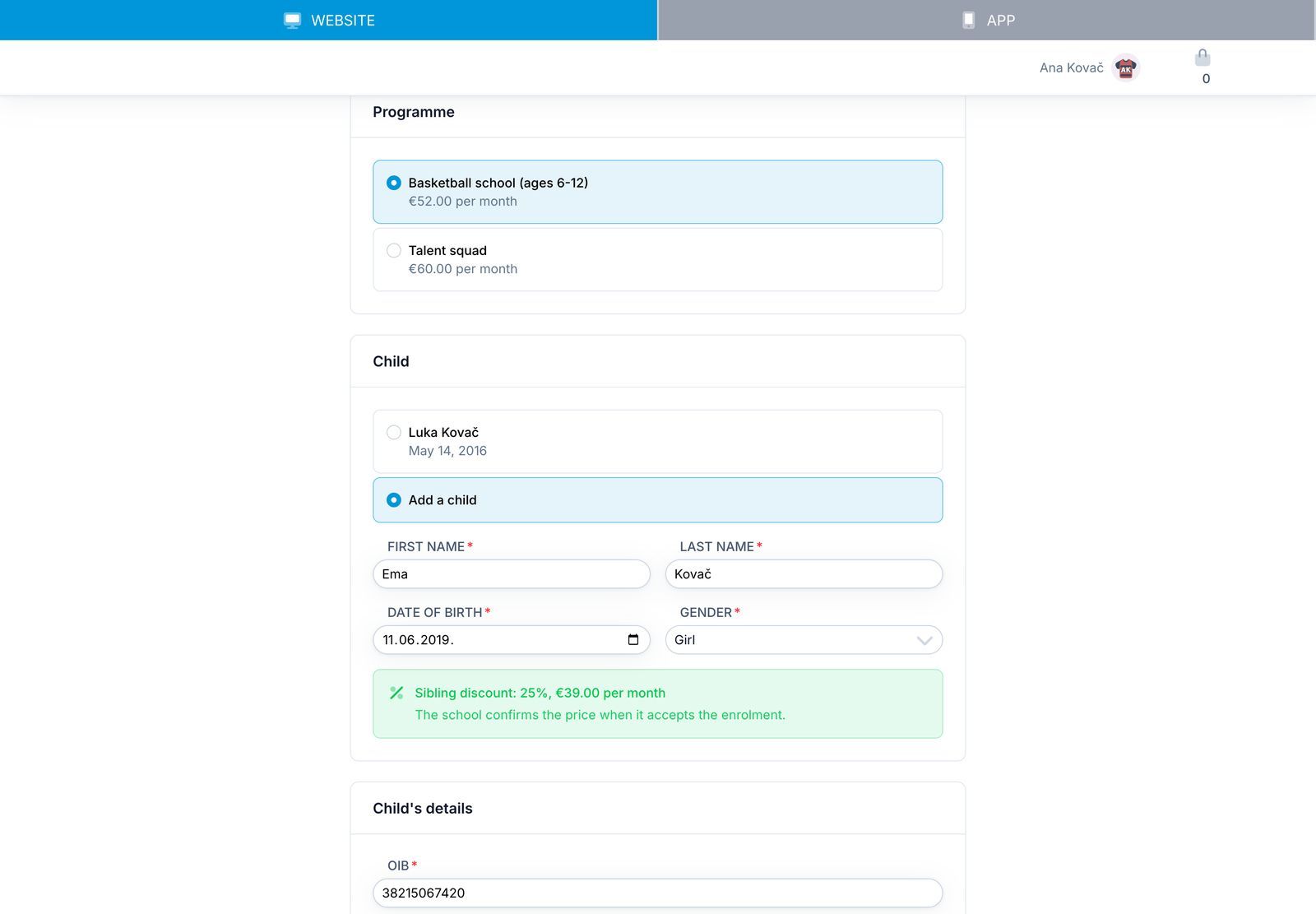
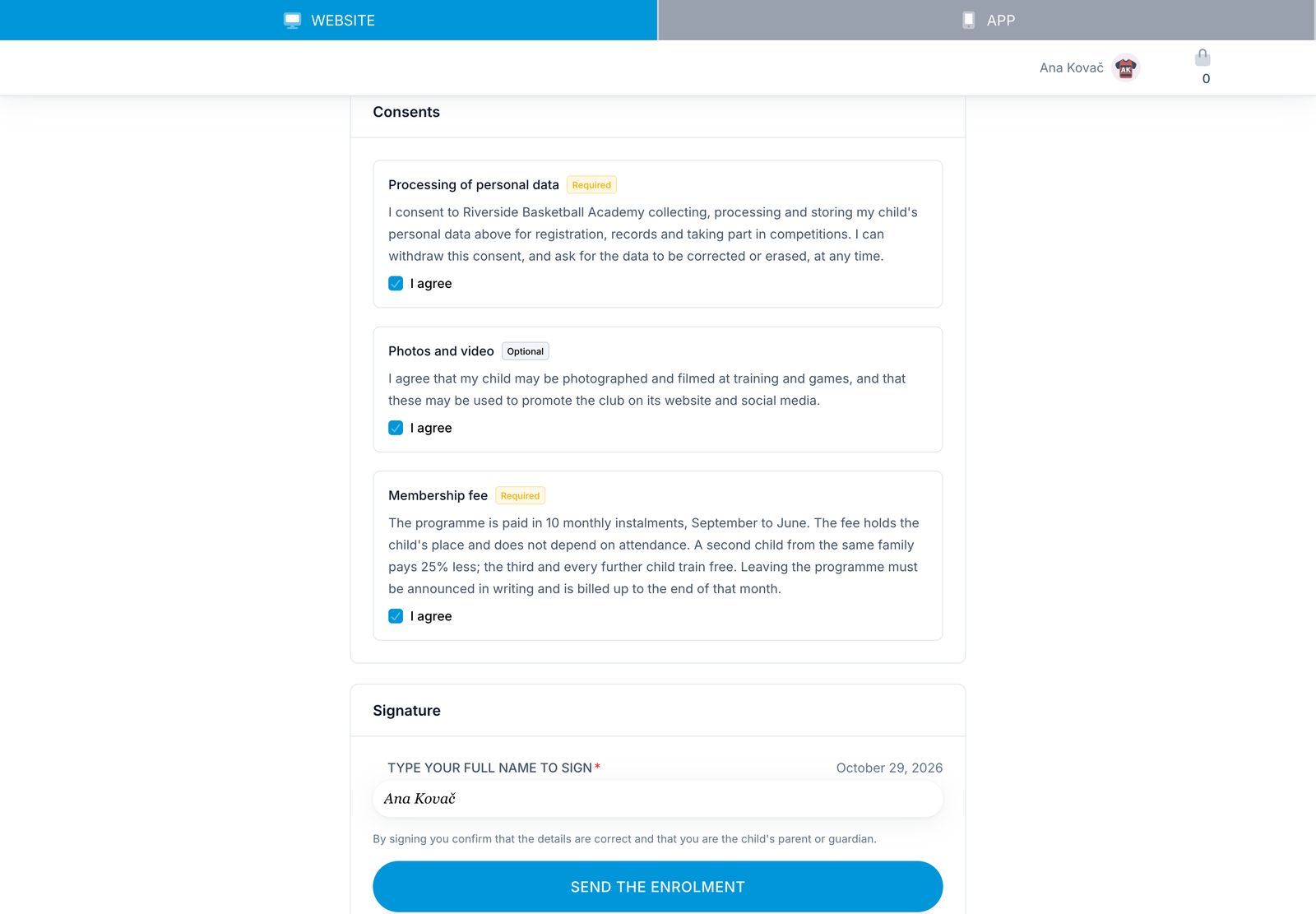
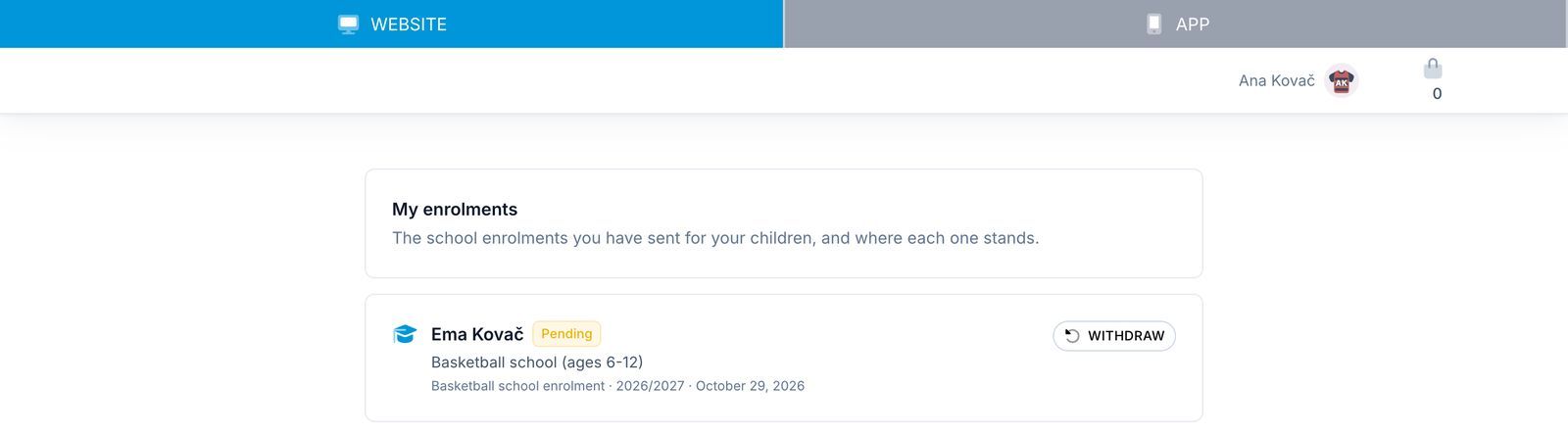
After sending, parents follow their requests under My enrolments in their account menu, and can Withdraw a request you haven't decided on yet. See Enrolling a child in the member guide.
Questions
Can a parent enrol a child without an account? No. The account is where the child's invoices go and where the parent sees training, payments and documents. Creating one takes a minute and happens from the form.
Can a child have two requests on the same form? Not while one is pending or accepted. Once a request is declined or withdrawn, the parent can send a new one.
Can a parent change their answers after sending? No. They can withdraw a pending request and send a new one. After you've accepted it, changes go through the school.
Who can see the requests? Your club's administrators. Parents see only their own.
Is a typed name a valid signature? For club enrolment, an electronic signature is as admissible as a handwritten one under EU rules. What makes it useful is the record kept with it: who was signed in, when, from which address, and the exact text they agreed to, all in the PDF. If your country requires a handwritten signature for a particular contract, check locally.