Programmes and students
A programme is what a child is enrolled in and billed for every month: Basketball school, Talent squad, Under-10s. Enrolling a child gives them a subscription to the programme, at the programme's price or one you set for that child.
Creating a programme
A programme is a product in your shop, marked as an academy product:
- Go to Shop → New product.
- Make it a subscription billed every Month, with the monthly price.
- Set Product type to Academy.
The New program button under Academy Manager → Programs also has Create new product, which makes one from just a name and a price.
To rename a programme or change its list price, edit the product in Shop → Products. A new list price applies to children enrolled from then on; children already enrolled keep their own price until you change it with Change price.
The programmes list
Academy Manager → Programs
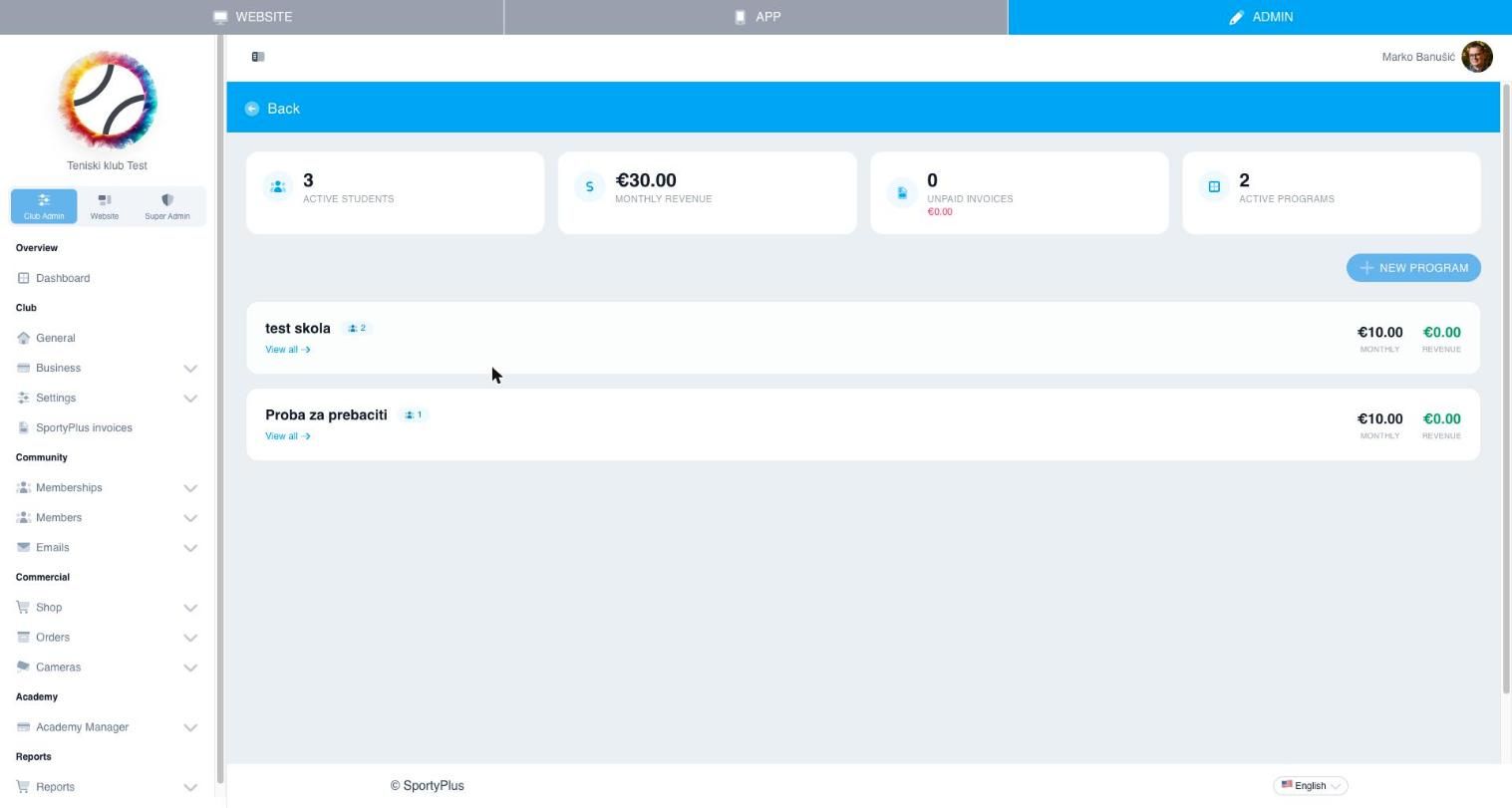
The top shows active students, monthly revenue, unpaid orders and active programmes. Overdue payments lists the programmes with students who owe money. Click a programme to open it.
Enrolling students
Parents can enrol their children themselves through an enrolment form. To enrol someone yourself:
- One student: Enrol a student on a programme's page, on Students, or on the dashboard. Pick the member, or choose Not on the list? Add them. For a child, link a parent who has an account, or create the parent's account too. Then set the price (leave it empty for the programme's price) and the Status:
- Active — include in monthly billing: the child is billed from the next order run.
- Awaiting first payment: the child is on the programme but not billed by the monthly run. To make them active later, tick them and choose Resume.
- Many at once: Academy Manager → Programs → New program adds several members to one programme in one go, all active. Despite its name, this page doesn't create a programme; pick an existing one (or create it with Create new product), optionally set a price for all of them, add the members, and confirm.
Enrolling never sends the parent anything and doesn't create an order. Orders come from the monthly billing run.
A programme's students
Open a programme to see its students with their status, last payment and debt, and the programme's monthly price and revenue. Search by name, email or phone, and filter by status.
Statuses:
| Status | Meaning |
|---|---|
| Active | Enrolled and included in the monthly billing run. |
| Awaiting first payment | On the programme but not billed by the monthly run. |
| Past due, Unpaid | Has orders that haven't been paid. |
| Paused | Not billed until you resume them. |
| Canceled | Removed from the programme. Kept so you can see the history. |
Actions on each student:
- Move to another program: moves the student to another programme at that programme's list price. Change the price afterwards if the student had a discount.
- Change price: sets the student's monthly price. The next order uses it. Use it for discounts, scholarships or a mid-season change.
- Send reminder: for a student with unpaid orders, emails the parent a reminder for each one.
- Add note: notes for staff. Parents never see them.
- Pause / Resume: a paused student is left out of the monthly billing run until you resume them.
- Remove: cancels the student's place, after asking. They are no longer billed, and they stay in the list as Canceled.
Tick several students to Pause, Resume or Remove them together. Resume activates every selected student who isn't active, including students Awaiting first payment and Canceled ones, so it is also how you bring them back. Remove asks before it cancels anyone.
Students
Academy Manager → Students lists every student who has, or has had, a place in any programme, with their parent, programme, price, status, and the month's attendance. A student enrolled in several programmes is shown once, with the most recent one; open the student to see them all.
A student's page
- Programmes: each of the student's programmes, its status, start date and monthly price. Move to program asks, then moves the student at the new programme's price. Remove subscription cancels the place, after asking; it stays in the history as canceled.
- Family: the student's parents and guardians.
- Training attendances: the trainings the student was on, by month.
- Invoices: the student's orders, with Send reminder for unpaid ones and a CSV export. Generate order creates one month's order for one programme straight away and emails it to the parent. It refuses a month that already has an unpaid order.
- Notes, Medical documents and Equipment: see Medical documents and equipment.
Edit profile opens the member's profile.
Questions
How do sibling discounts work? On an enrolment form, the discount is worked out from the form's sibling ladder when you accept the request. When you enrol a child yourself, set the discounted price with Change price.
A family is leaving mid-season. What do I do?Remove the child from the programme. They won't be in the next billing run. Orders already sent stay as they are; cancel any you don't want to collect under Billing.
Enrolment forms
Let parents enrol their children in your school online, with every consent recorded, and turn each accepted request into the child's monthly billing.
Billing and bank statements
Raise the monthly orders for your school, send them to parents, record payments, and match your bank statement to them.