Settings
Booking rules and price list
Decide who can book your courts and how, and publish a price list.
Booking rules are set at two levels:
- Club-wide, under Settings → Reservations, covered on this page.
- Per membership, on each membership plan: how far ahead a member can book, how late they can cancel, and how many bookings they can hold.
Prices are set per court, under court prices. The Price list on this page only publishes them.
League clubs have no courts, so they don't see either screen.
Reservation settings
Club Admin → Settings → Reservations
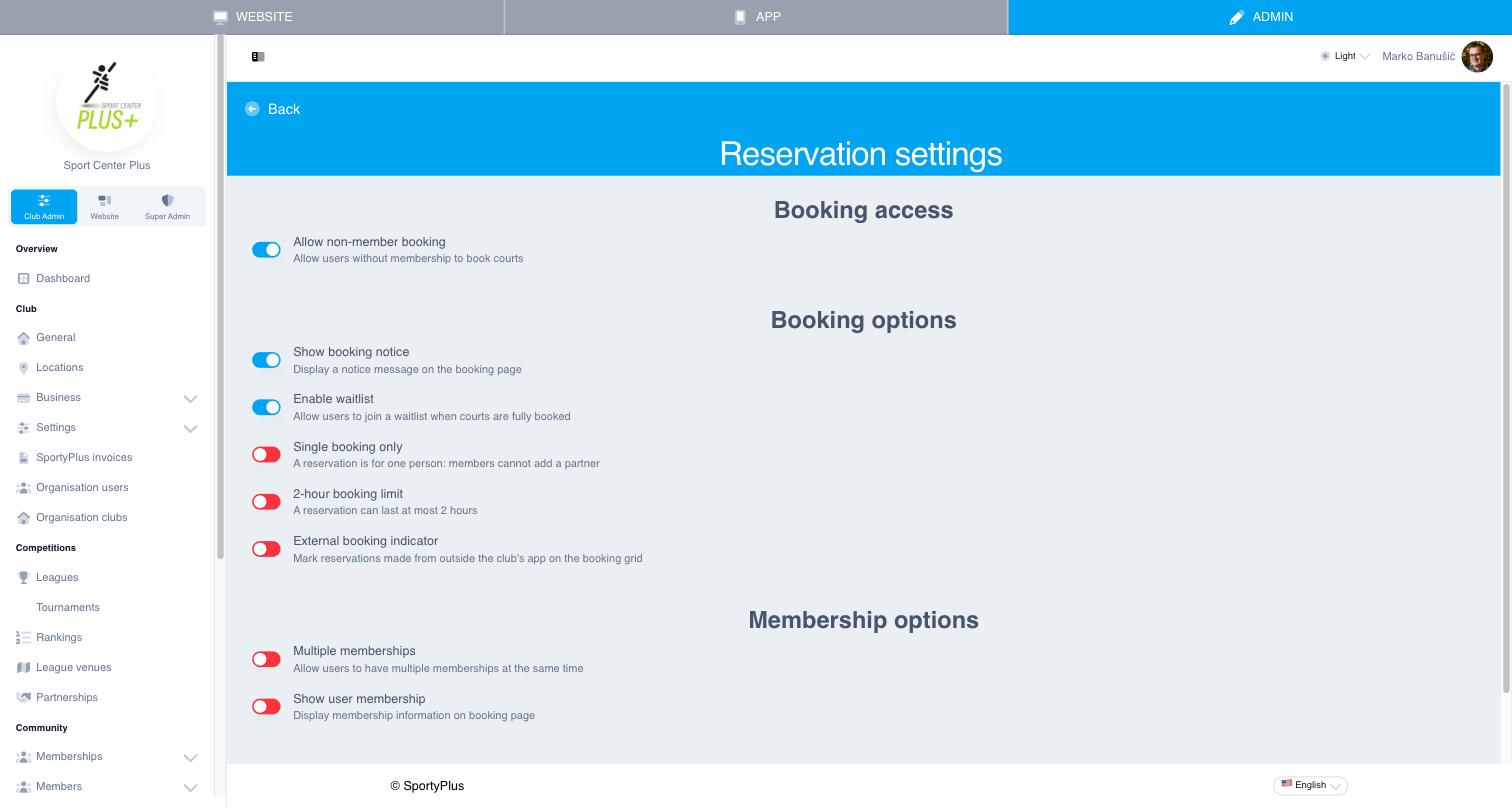
Booking access
- Allow non-member booking — people without a membership can book courts. Switch it off to keep the courts for members.
Booking options
- Show booking notice — shows a notice on the booking page, for example about court maintenance.
- Enable waitlist — when the courts are fully booked, members can join a waitlist.
- Single booking only — a reservation is for one person, so members can't add a partner.
- 2-hour booking limit — no reservation can last longer than two hours.
- External booking indicator — marks bookings made outside your club's app, such as through a partner booking site, on the booking grid.
Membership options
- Multiple memberships — lets a member hold more than one membership at once, such as a court membership and a school membership.
- Show user membership — shows each member's membership on the booking page.
Press Save at the bottom of the page.
Price list
Club Admin → Settings → Price list is the price list members open with Show price list on the booking page.
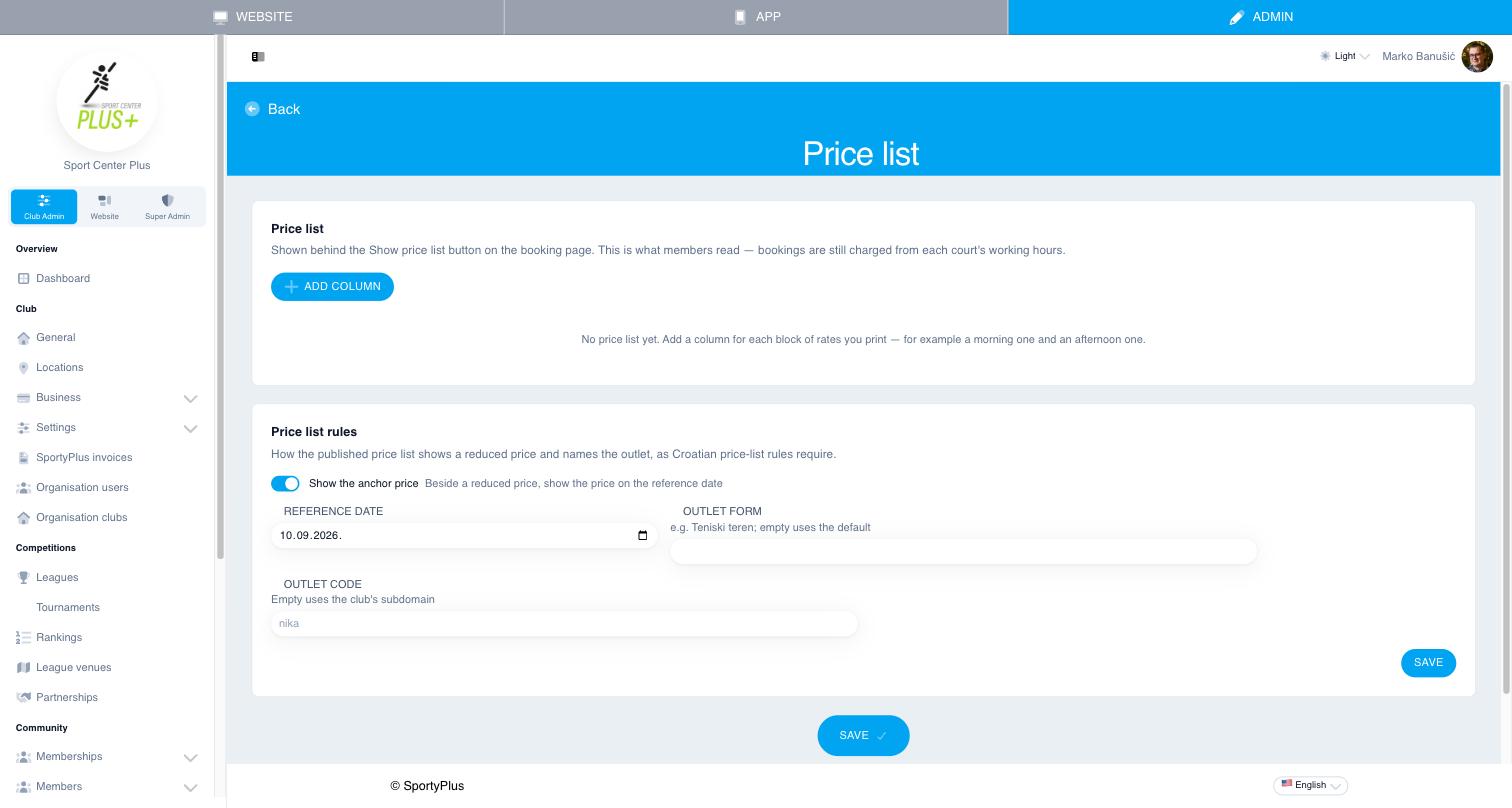
The price list is for display only. What a booking costs comes from each court's prices. If you change a rate, change it on the court too, or members will be charged a different price from the one they read.
Use it to publish what's hard to read from the booking grid: morning and evening rates, weekend prices, a lighting or heating supplement.
- Choose Add column. A column is one block of rates, such as "Morning" or "Weekend".
- Give the column a Heading and, optionally, the Hours it applies to, such as "08:00–16:00".
- Add a rate for each line, such as "1 hour" and its amount. Choose Add rate for more lines.
- Add more columns if you need them, and reorder them with the arrows.
- Save. Save stays disabled until every column has a heading and at least one rate.
Price list rules
Croatian price-list rules require a reduced price to be shown next to the price it was reduced from. If they apply to you:
- Switch on Show the anchor price, and set the Reference date whose prices count as the original ones.
- Outlet form and Outlet code name your business on the published list. Leave them empty to use the defaults: a generic description, and your club's subdomain.
The rules have their own Save button.