On sale and at the door
Once a seated event is on sale, its Seats tab shows every seat as it is now. Open the event under Website → Events → Events and choose Seats.
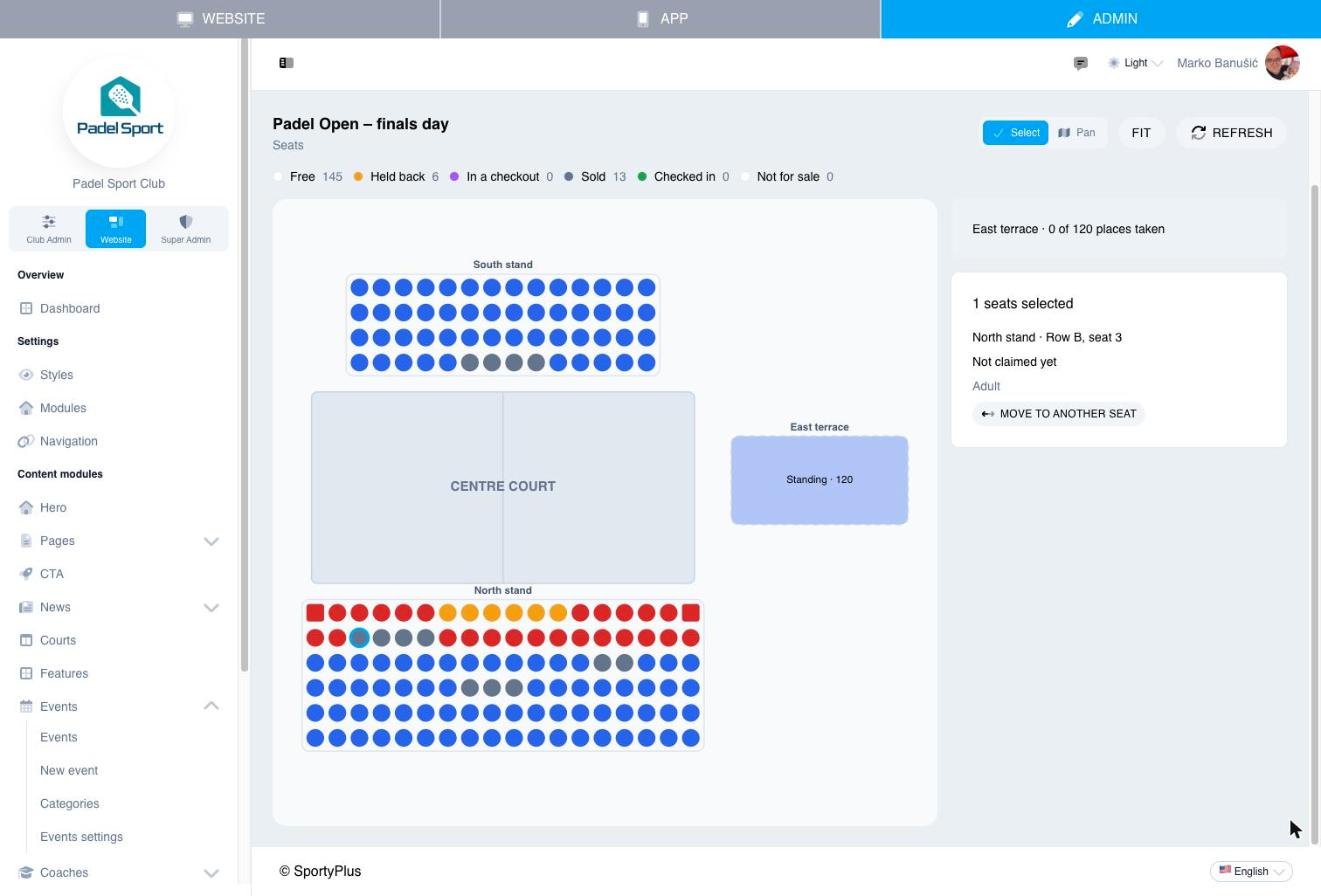
Seats are coloured by state:
| State | Meaning |
|---|---|
| Free | In its zone's colour, on sale. |
| Held back | Kept from sale by the club, with a label. |
| In a checkout | Someone chose it and is paying. It is held for them for 30 minutes. |
| Sold | A ticket sits in it. |
| Checked in | Its guest is in. |
| Not for sale | Switched off in the plan. |
The legend counts each state. Select seats the same way as in the plan editor: click, shift-click, or drag a box. Refresh reads the map again.
Hold seats back
Keep seats for sponsors, the press or players' families:
- Select the seats.
- Under Hold back from sale as, type a label such as Sponsors.
- Choose Hold.
Held seats can't be bought, picked by Find me the best seats, or sold at the till. To put them back on sale, select them and choose Release for sale. You can't hold a seat that is sold or in someone's checkout.
Give a seat to someone
Select one free or held seat. Under Give this seat to someone, choose the ticket type, enter an email address, and choose Issue ticket.
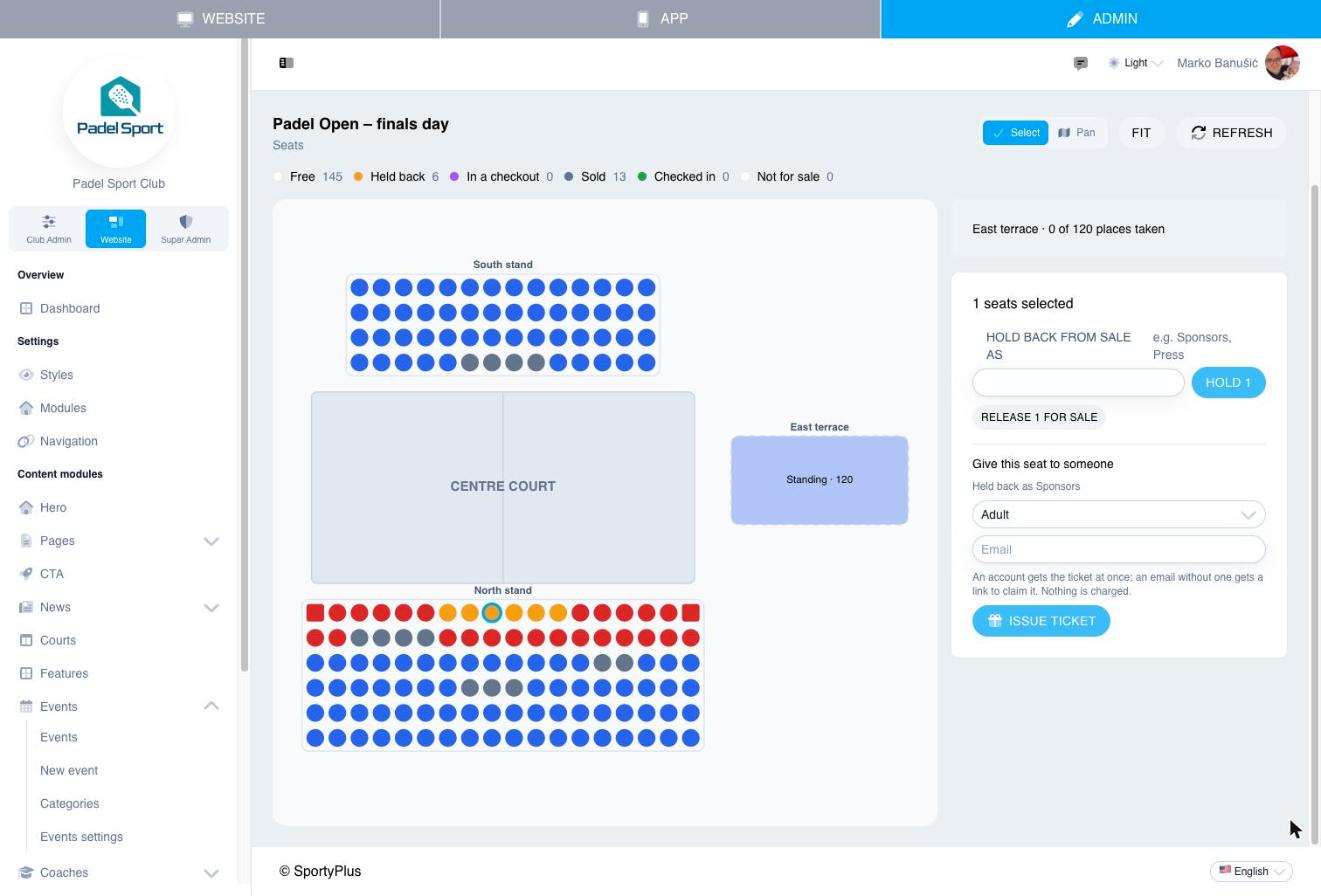
- If the email belongs to a SportyPlus account, the ticket is theirs straight away.
- If not, they get a link to sign up and claim it.
Nothing is charged: the ticket has no order.
Move a ticket to another seat
For a broken seat, an upgrade, or a family that wants to sit together:
- Select the sold seat. The panel shows who holds the ticket, its type, its order, and whether a child sits on their lap.
- Choose Move to another seat.
- Click a free or held seat.
A lap ticket moves with its seat. The ticket's QR code doesn't change, because its holder is the same.
Tickets without a seat
A buyer has 30 minutes to pay for the seats they chose. If someone pays after that, and their seat was sold to someone else in the meantime, they still get their ticket, because the money has been taken, but it has no seat.
Such tickets are listed under Tickets without a seat. Choose Choose a seat next to each one, then click a free or held seat.
Standing areas
Each standing area shows how many of its places are taken.
At the door and the till
At the door, scan tickets with the SportyPlus POS app as usual. For a seated event, the result shows where the guest sits, such as North stand · Row B, seat 4, and the ticket type's door wording in large type, such as CHILD.
At the till, seated events have a Sell seats button in the door's event list. It opens the seat map: tap free seats, choose each one's ticket type and, where allowed, a child on the lap, or open a standing area for a number of places. Then Add to sale and take payment as usual.
The till sells only seats that are free at that moment. A seat bought online while you were choosing is refused when you complete the sale. Sales with seats need a connection: unlike other sales, they can't be saved on the device and sent later.